Setting up a Tenant
A tenant represents a single Xero organisation connected to your Salesforce org. Adding a tenant connects Conduit for Xero to your Xero organisation and runs an initial sync.
Adding a Tenant
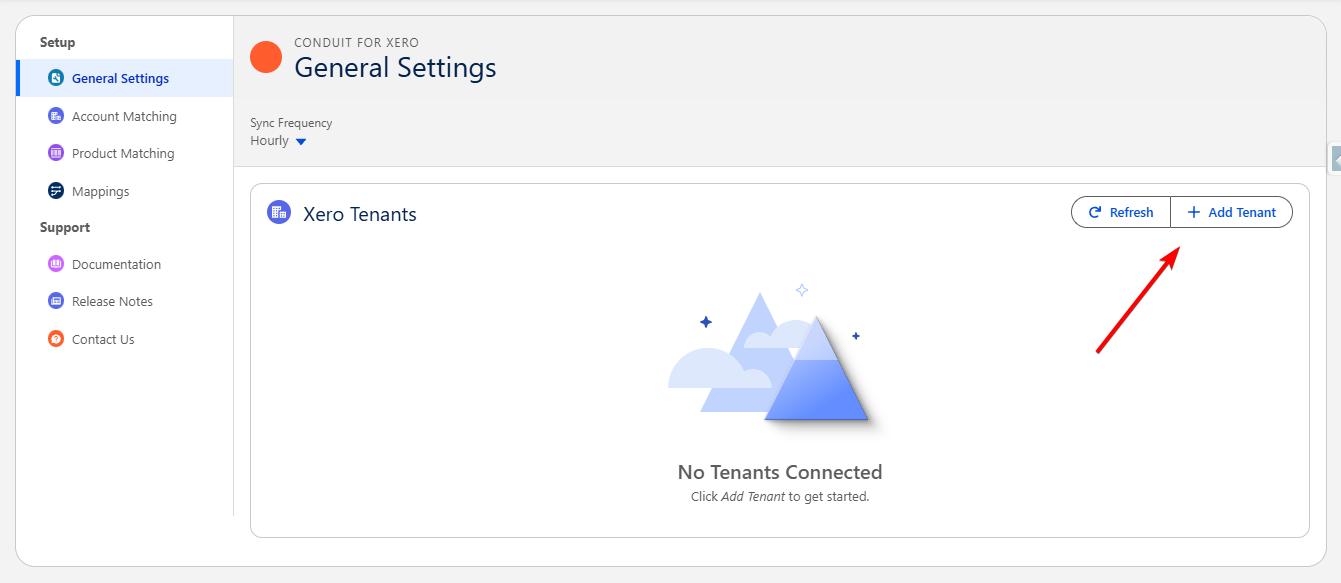
Section titled “Adding a Tenant”In General Settings, click Add Tenant.
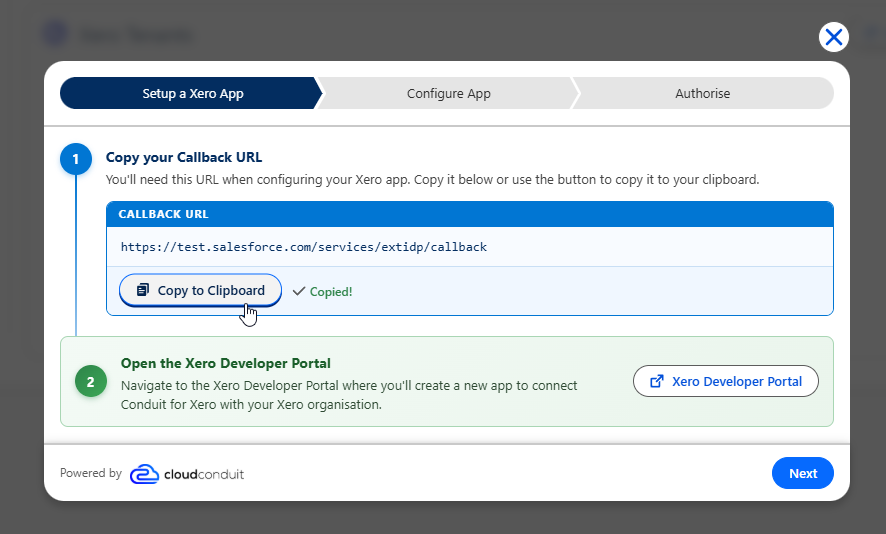
On the Setup a Xero App step, copy your Callback URL, then click Xero Developer Portal to open the portal in a new tab.
In the Xero Developer Portal, create and configure your app:
Xero Developer Portal-
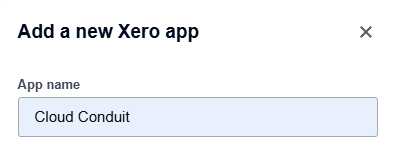
Add a new Xero app and enter an App name. We recommend using Cloud Conduit.
-
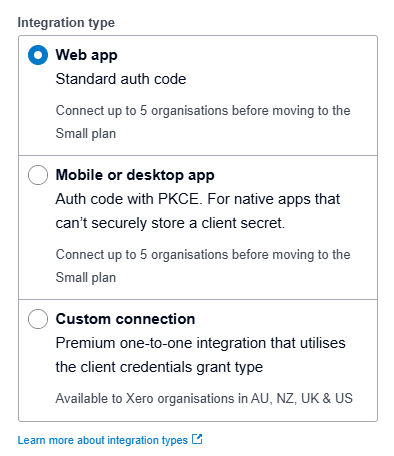
Set the Integration type to Web app.
-
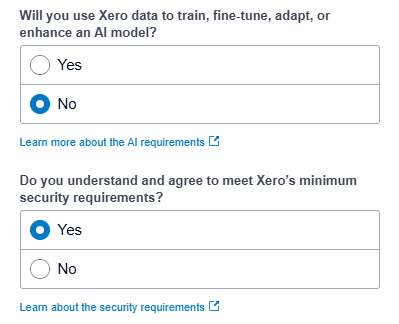
Answer the AI and security requirement questions.
-
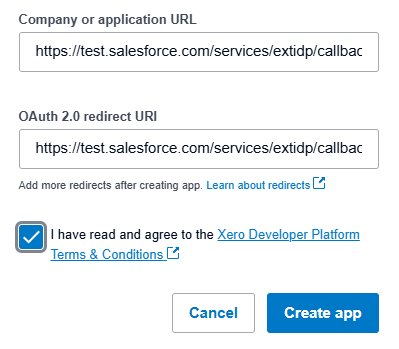
Enter the Company or application URL, paste your Callback URL into the OAuth 2.0 redirect URI field, agree to the terms, and click Create app.
-
Open the Configuration tab and copy your Client ID and Client Secret.
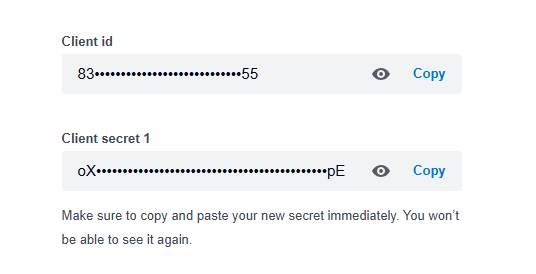
Back in the Salesforce configuration, paste the Client ID and Client Secret (the consumer key and secret) into the corresponding fields.
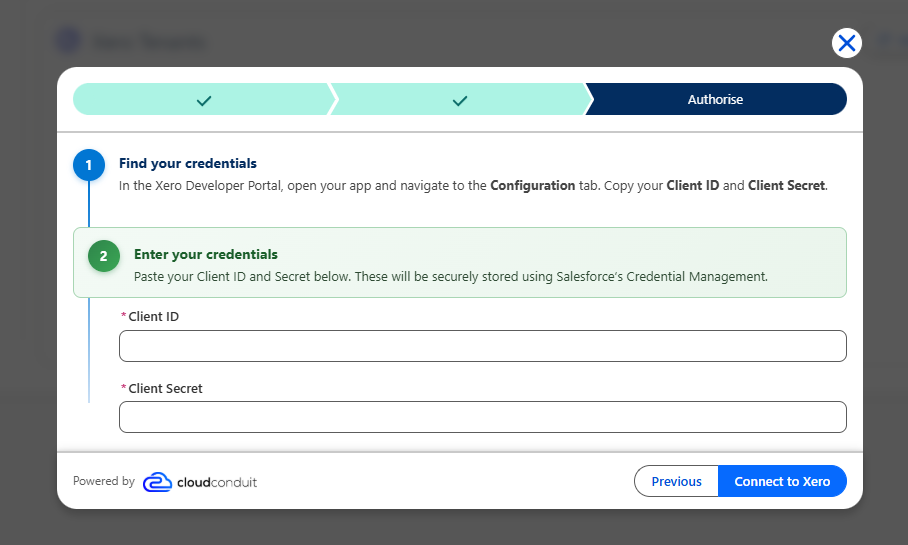
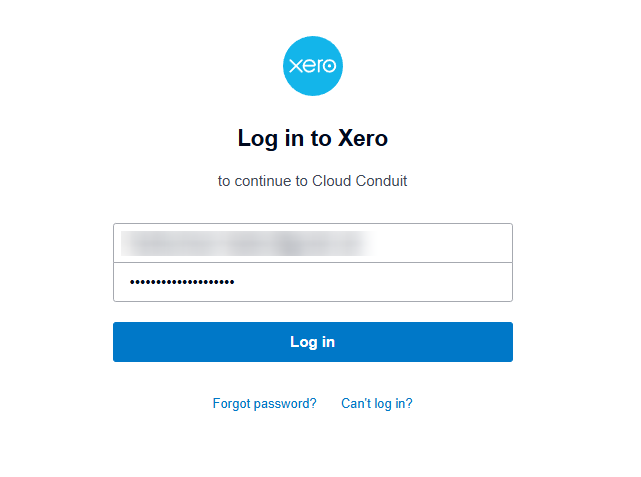
Click Connect to Xero, then log in to Xero with your account.
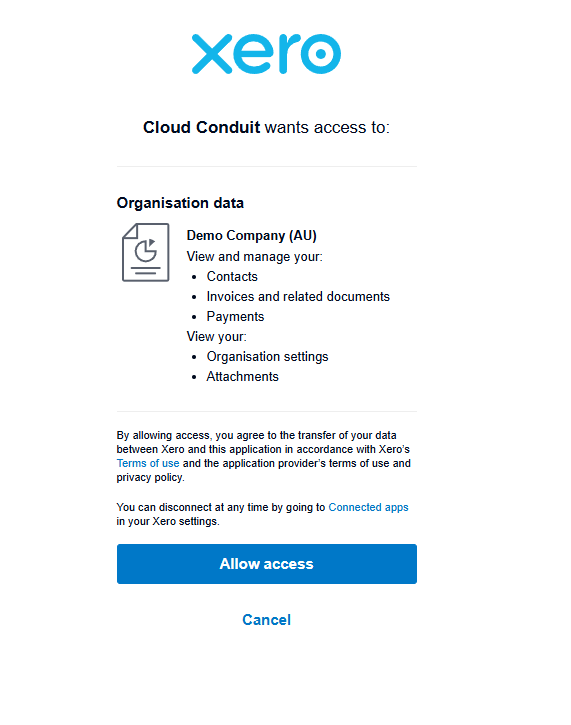
Review the access Cloud Conduit is requesting and click Allow access.
Once completed, follow the prompts to complete the tenant configuration described below.
Configure Tenant
Section titled “Configure Tenant”After connecting, the tenant configuration wizard opens. Work through each step to control how data syncs between Xero and Salesforce.
General Settings
Section titled “General Settings”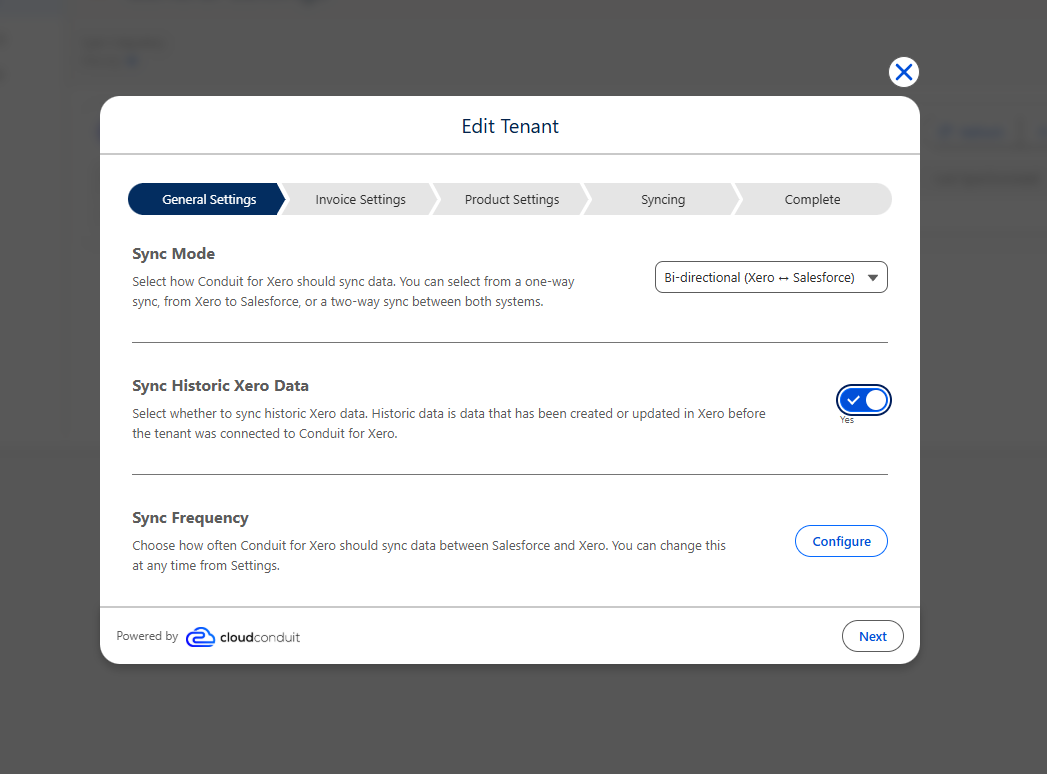
| Setting | Description |
|---|---|
| Set Sync Mode | Use Sync Mode to choose how data flows. You can select a one-way sync from Xero to Salesforce, or a bi-directional sync between both systems. |
| Sync Historic Data | Enable Sync Historic Xero Data to include records that were created or updated in Xero before the tenant was connected. Leave it off to sync only new changes going forward. |
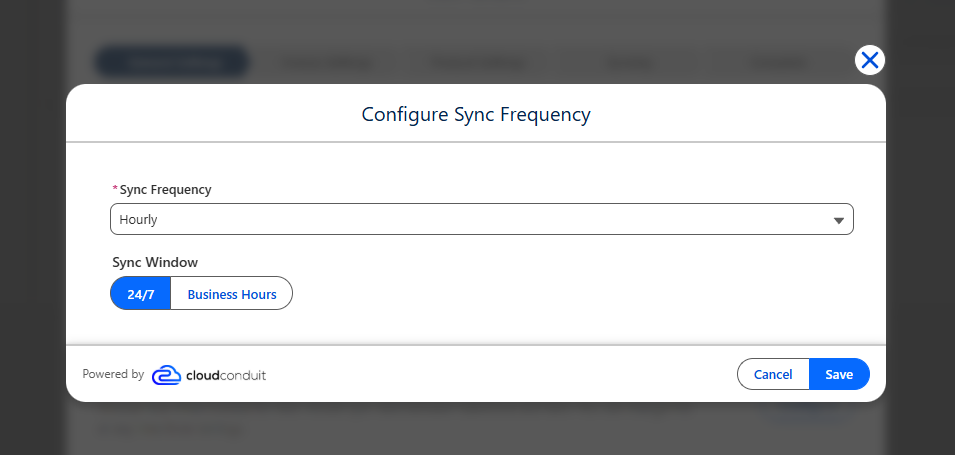
| Sync Frequency | Choose how often Conduit for Xero syncs data, and set the Sync Window to either 24/7 or Business Hours. We recommend Hourly for most organisations. You can change this at any time from Settings. |
Invoice Settings
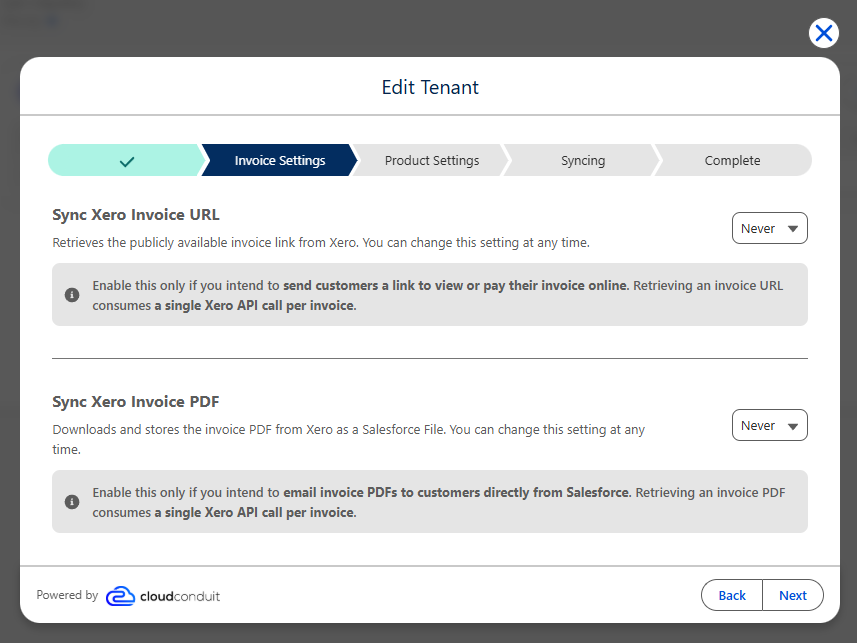
Section titled “Invoice Settings”Control whether the Xero invoice URL and PDF are retrieved for each synced invoice. Both are set to Never by default, and each consumes a single Xero API call per invoice, so only enable the options you need.
| Setting | Description |
|---|---|
| Sync Xero Invoice URL | Retrieves the publicly available invoice link from Xero. Enable this only if you intend to send customers a link to view or pay their invoice online. |
| Sync Xero Invoice PDF | Downloads and stores the invoice PDF from Xero as a Salesforce File. Enable this only if you intend to email invoice PDFs to customers directly from Salesforce. |
Product Settings
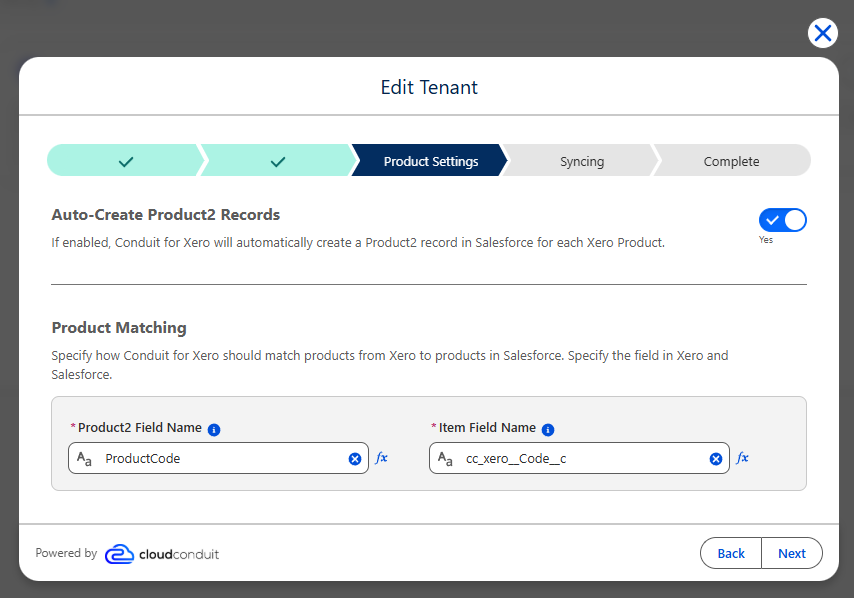
Section titled “Product Settings”Control how Xero products are matched to, and created in, Salesforce.
| Setting | Description |
|---|---|
| Auto-Create Product2 Records | If enabled, Conduit for Xero automatically creates a Product2 record in Salesforce for each Xero product. |
| Product Matching | Specify how Conduit for Xero matches products from Xero to products in Salesforce by mapping a Product2 field to an Item field. See Product Matching for details. |
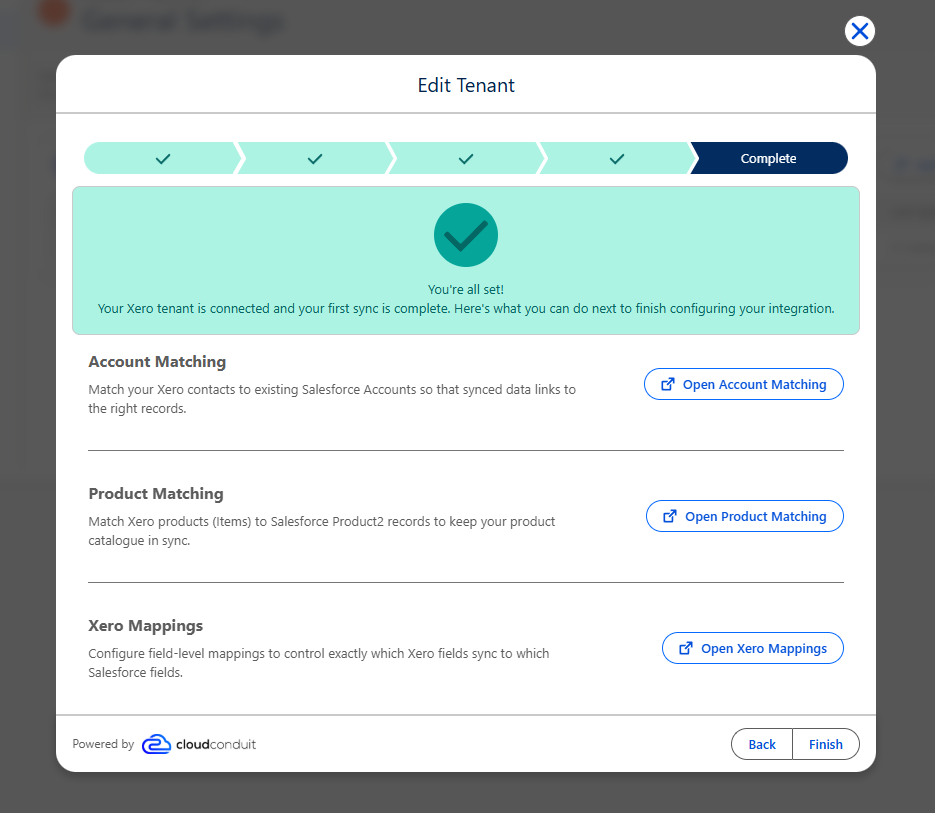
Complete
Section titled “Complete”Your core setup is now complete: the tenant is connected and the first sync has run. If you want to begin creating invoices from Salesforce, continue with Account Matching and generating Xero Mappings.