

Invoice an Existing Contact
Use this option when the record’s Account is already matched to a Xero Contact. The flow finds that contact and passes it to the Create Xero Invoices action.
Add these elements below Get Xero Tenant, which you created in Set Up the Flow.
Get the Xero Contact
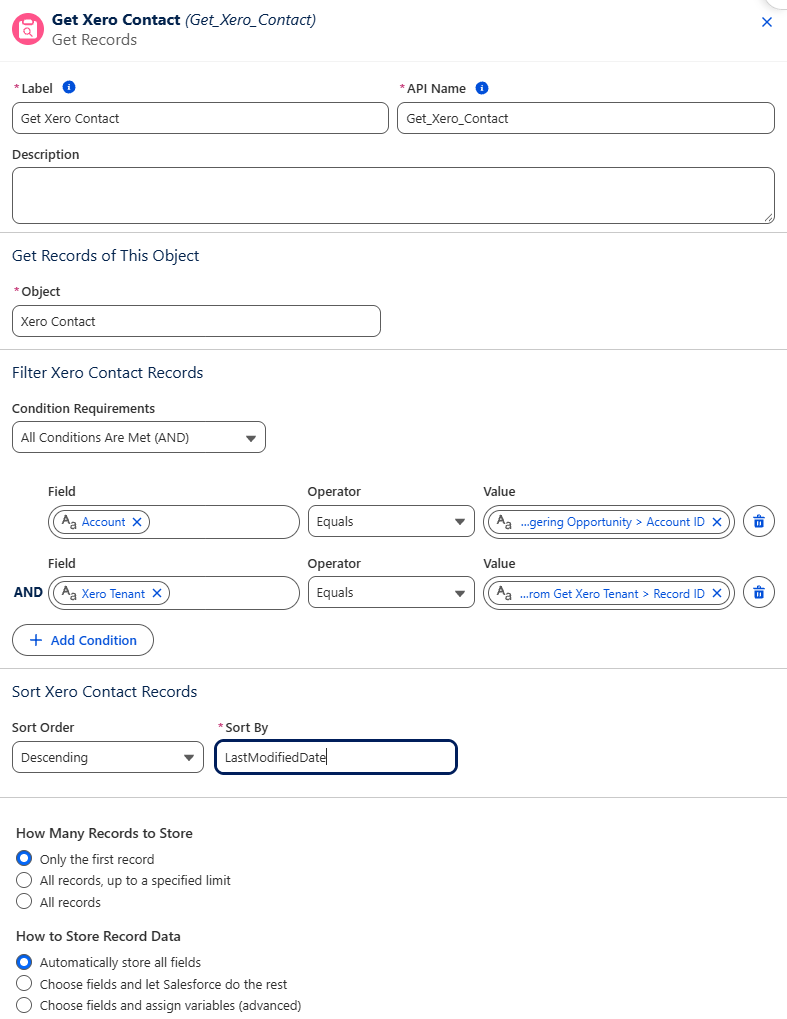
Section titled “Get the Xero Contact”Add a Get Records element to find the Xero Contact matched to the Opportunity’s Account:
- Label —
Get Xero Contact. - Object —
Xero Contact. - Filter — Account Equals Triggering Opportunity > Account ID, and Xero Tenant Equals Get Xero Tenant > Record ID.
- Sort Order — Descending by
LastModifiedDate, so the most recently updated contact is used when an Account has more than one. - How Many Records to Store — Only the first record.
Create the Invoice
Section titled “Create the Invoice”Click + below Get Xero Contact, search for Create Xero Invoices and select the action.
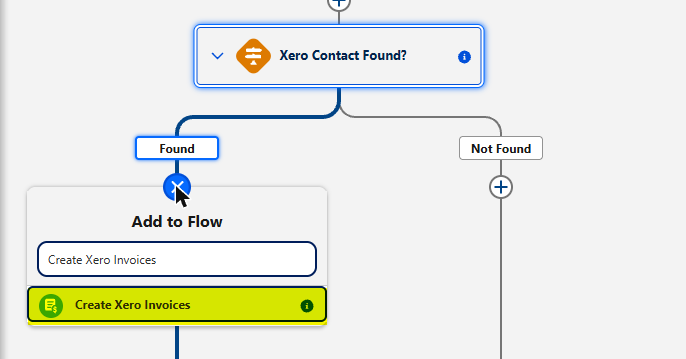
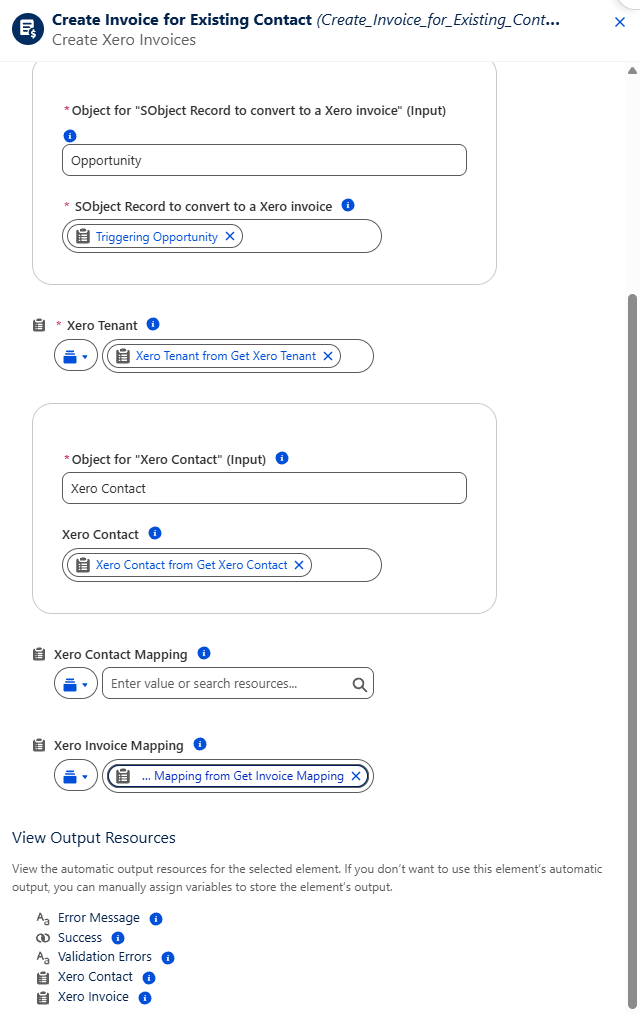
Label it Create Invoice for Existing Contact and set its inputs:
- Object for “SObject Record to convert to a Xero invoice” —
Opportunity, then set SObject Record to convert to a Xero invoice to Triggering Opportunity. - Xero Tenant — Xero Tenant from Get Xero Tenant.
- Object for “Xero Contact” —
Xero Contact, then set Xero Contact to Xero Contact from Get Xero Contact. - Xero Invoice Mapping — Xero Mapping from Get Invoice Mapping.
Leave Xero Contact Mapping empty. It’s only needed when the contact is being created.
Next, activate and test the flow.