

Configure Xero Mappings
A Mapping defines how a Salesforce® record is translated into a Xero invoice: which Salesforce object it’s built from, which fields populate the invoice header and lines, the tracking categories to apply, and how the resulting invoice links back to its source record. Once configured, a mapping can be made available to your users so they can create Xero invoices directly from the Salesforce UI.
The examples below build a standard sales invoice from an Opportunity, with one invoice line for each of its products (Opportunity Line Items).
Open the Mappings Area
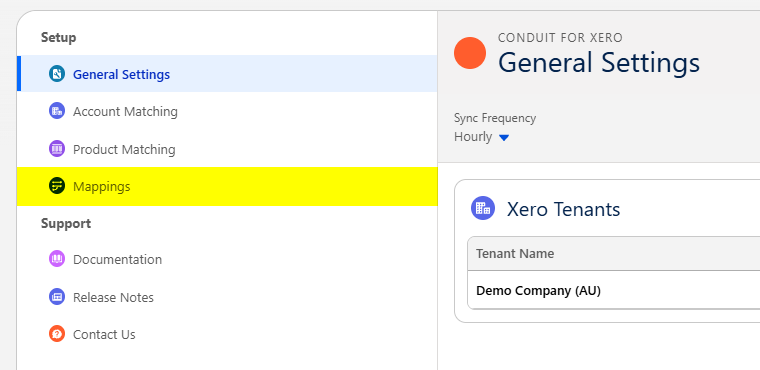
Section titled “Open the Mappings Area”Navigate to the Conduit for Xero Settings tab and select Mappings from the navigation menu.
The Xero Mappings list shows each mapping’s type, source object and whether it’s available in the UI. To change an existing mapping, click the arrow at the end of its row and select Edit.

Create a New Mapping
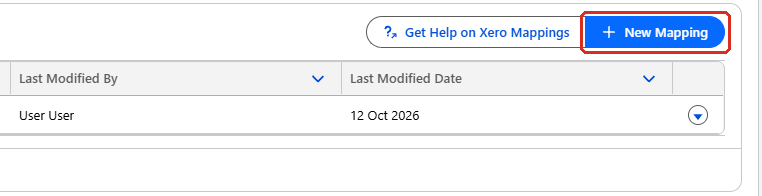
Section titled “Create a New Mapping”Click New Mapping.
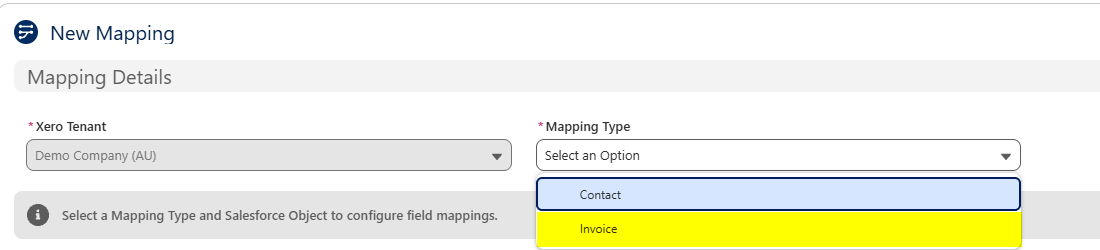
Select the Mapping Type. This page covers Invoice mappings. Contact mappings, for Xero contacts, aren’t covered here.
Complete the Mapping Details:
- Xero Tenant — the Xero organisation the mapping applies to. If you have only one tenant connected, it’s selected for you.
- Salesforce Object — the object the invoice is built from, for example
Opportunity. - Mapping Name — a name your users will recognise, for example
Standard Sales. - Description — optional. It’s shown to users when they choose a mapping while creating an invoice, so describe when the mapping should be used.

Once the Mapping Type and Salesforce Object are selected, the Field Mappings section appears below.
Map the Invoice Fields
Section titled “Map the Invoice Fields”Each field in Field Mappings takes its value in one of two ways:
- From a Salesforce field. Click the field, then search for and select a field on the source object.
- As a static value. Fields such as Type and Account Code offer a list of fixed values instead, some of them read from your Xero organisation.
Click the icon beside a field to switch it between a Salesforce field and a static value. Required fields are marked with an asterisk. Optional fields have an × that removes them from the mapping.
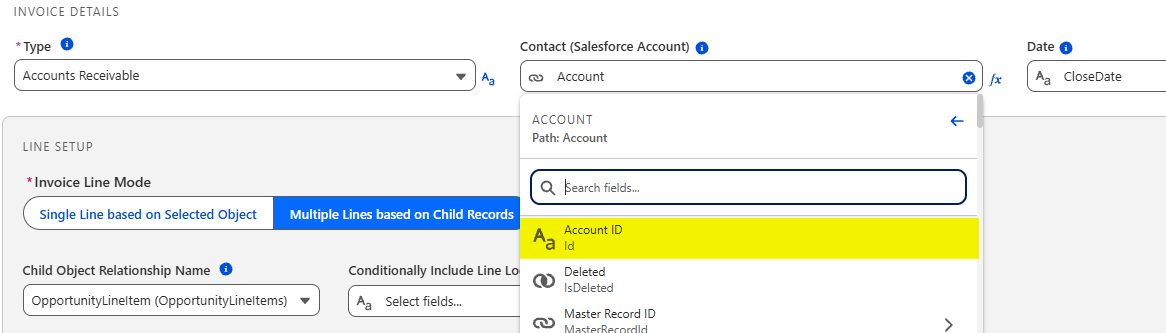
Lookup fields are marked with an arrow (>). Selecting one opens the fields of the related record, and you must then select a field there to complete the mapping. For example, to map the Opportunity’s Account, select Account ID:
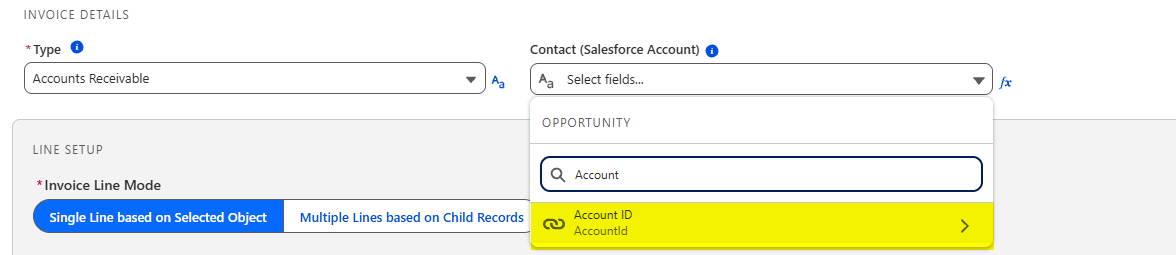
Then select Account ID again on the related Account. The field shows the full path, Account.Id. Click the back arrow to return to the previous object.
Invoice Details
Section titled “Invoice Details”The Invoice Details section maps the invoice header. Two fields are always shown:
- Type — select Accounts Receivable for a sales invoice, or Accounts Payable for a bill.
- Contact (Salesforce Account) — the Account whose matched Xero Contact the invoice is raised against. For an Opportunity, map it to
Account.Idas shown above.
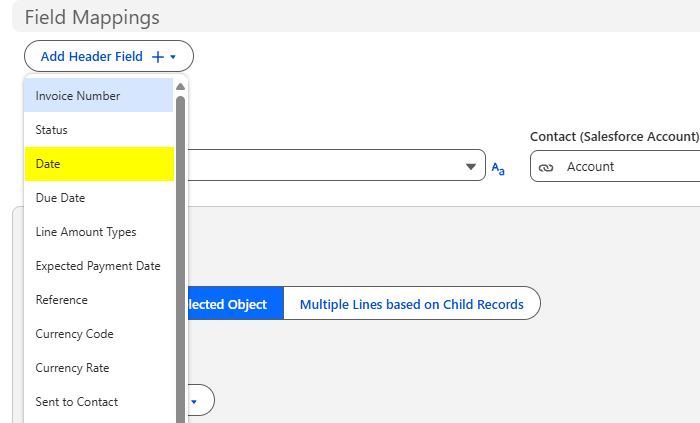
To map another header field, click Add Header Field and select it from the list. For example, add Date and map it to the Opportunity’s Close Date.

Line Setup
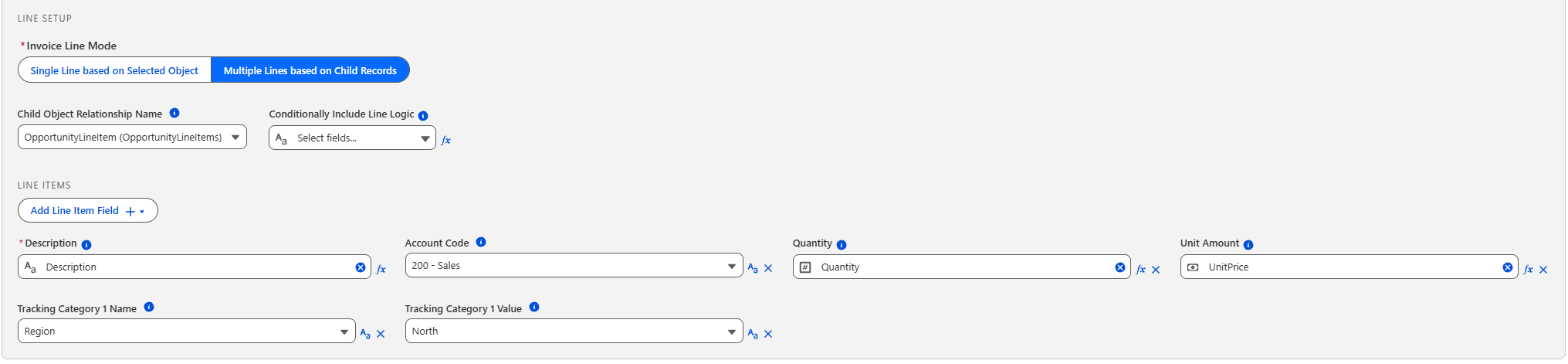
Section titled “Line Setup”The Line Setup section determines how the invoice lines are built. Choose the Invoice Line Mode:
- Single Line based on Selected Object — build the invoice with a single line drawn from the selected object. This is useful when you’re billing a single item and all the information is stored on the record itself, for example a membership fee or a one-off payment.
- Multiple Lines based on Child Records — build one invoice line for each child record, for example one line for each product on an Opportunity.
For multiple lines, select the Child Object Relationship Name, for example OpportunityLineItem (OpportunityLineItems).
Conditionally Include Line Logic
Section titled “Conditionally Include Line Logic”By default, every child record becomes an invoice line. To include only some of them, use Conditionally Include Line Logic, which appears in Line Setup when Multiple Lines based on Child Records is selected.
Select a checkbox field on the child object. When the invoice is created, each child record is added as a line only if that field is checked. Records where it’s unchecked or empty are left off the invoice. Leave Conditionally Include Line Logic empty to include every child record.
- Use a field on the child object itself. A field on a related record, reached through a lookup, isn’t supported here.
- Use a checkbox formula for rules. For example, to leave zero-value products off the invoice, create a checkbox formula field on Opportunity Product called
Include_on_Invoice__cwith the formulaUnitPrice > 0, then select it here. - Use a plain checkbox for manual control. It lets your users untick individual products that shouldn’t be invoiced.
Line Items
Section titled “Line Items”The Line Items fields are mapped from the child records, or from the selected object in single line mode. Description is required. Click Add Line Item Field to add others, such as Account Code, Quantity and Unit Amount.
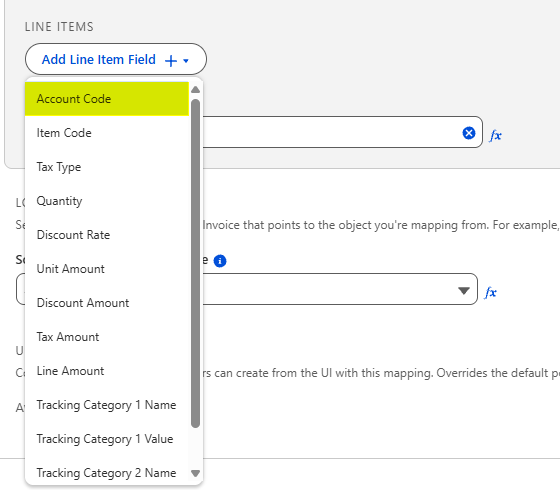
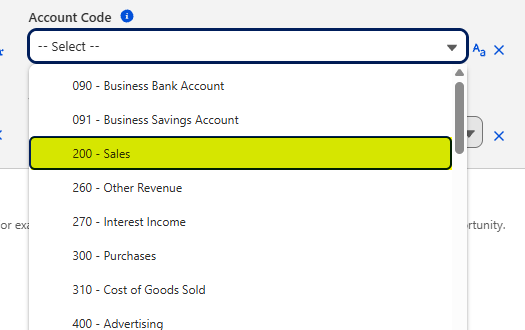
Account Code lists the accounts in your Xero chart of accounts as static values. Select the revenue account the lines should be coded to, for example 200 - Sales.
To apply Xero tracking categories, add Tracking Category 1 Name and select one of your Xero tracking categories, then add Tracking Category 1 Value and select the option to apply. The value list becomes available once a category name is set. Use Tracking Category 2 Name and Value the same way if your organisation has a second tracking category.

In this example, each Opportunity product becomes a line coded to 200 - Sales and tracked against the North region:
Lookup to Source Object
Section titled “Lookup to Source Object”The Lookup to Source Object section links the created Xero invoice back to the record it was created from. Select the lookup field on the Xero Invoice object that points to the selected object. Lookups to Opportunity (cc_xero__Opportunity__c) and Account (cc_xero__Account__c) are provided as standard.

Link Invoices to Another Object
Section titled “Link Invoices to Another Object”Conduit for Xero provides lookups to Opportunity and Account only. To create invoices from any other standard or custom object, such as Order or a custom Membership Fee object, add a lookup to that object on the Xero Invoice object first. The Source Object Lookup API Name list only shows lookups to the mapping’s Salesforce Object, so the new field appears there once it’s created.
To create the lookup field:
- Navigate to Setup > Object Manager and select Xero Invoice.
- Select Fields & Relationships and click New.
- Select Lookup Relationship and click Next.
- In Related To, select the object your mapping is built from, for example Membership Fee, and click Next.
- Enter a Field Label, for example
Membership Fee. The Field Name fills in automatically, which gives an API name such asMembership_Fee__c. Click Next. - Make the field visible and editable for every profile that creates Xero invoices, then click Next.
- Choose whether to add the field to the Xero Invoice page layouts, then choose whether to show the related Xero Invoices list on the source object’s page layouts. Click Save.
Return to your mapping, open Source Object Lookup API Name and select the new field.
UI Availability
Section titled “UI Availability”The UI Availability section controls whether users can create invoices from the Salesforce UI with this mapping, and in which statuses. Turn on Available in UI, then turn on the invoice statuses users may create: Draft, Submitted or Authorised. These settings override the default permissions in General Settings.

Test and Save the Mapping
Section titled “Test and Save the Mapping”Click Test Mapping to check the mapping before you save it.
Search for and select a record of the source object to see what the mapping would send to Xero. Nothing is sent to Xero or saved.

Click Close, then click Save. The mapping appears in the Xero Mappings list, and if it’s available in the UI, users can select it when creating an invoice from a record.