

Public Xero Invoice URL
Conduit for Xero can retrieve the public link to each sales invoice’s online invoice in Xero and store it on the Xero Invoice record in Salesforce®. Send this link to your customer so they can view and download the invoice and, if you’ve set up online payments in Xero, pay it online.
URLs are retrieved for sales invoices (Accounts Receivable) that haven’t been deleted. Bills (Accounts Payable) don’t have one.
Turn On Invoice URL Retrieval
Section titled “Turn On Invoice URL Retrieval”Navigate to the Conduit for Xero Settings tab. In General Settings, click the arrow at the end of your tenant’s row in Xero Tenants and select Edit.

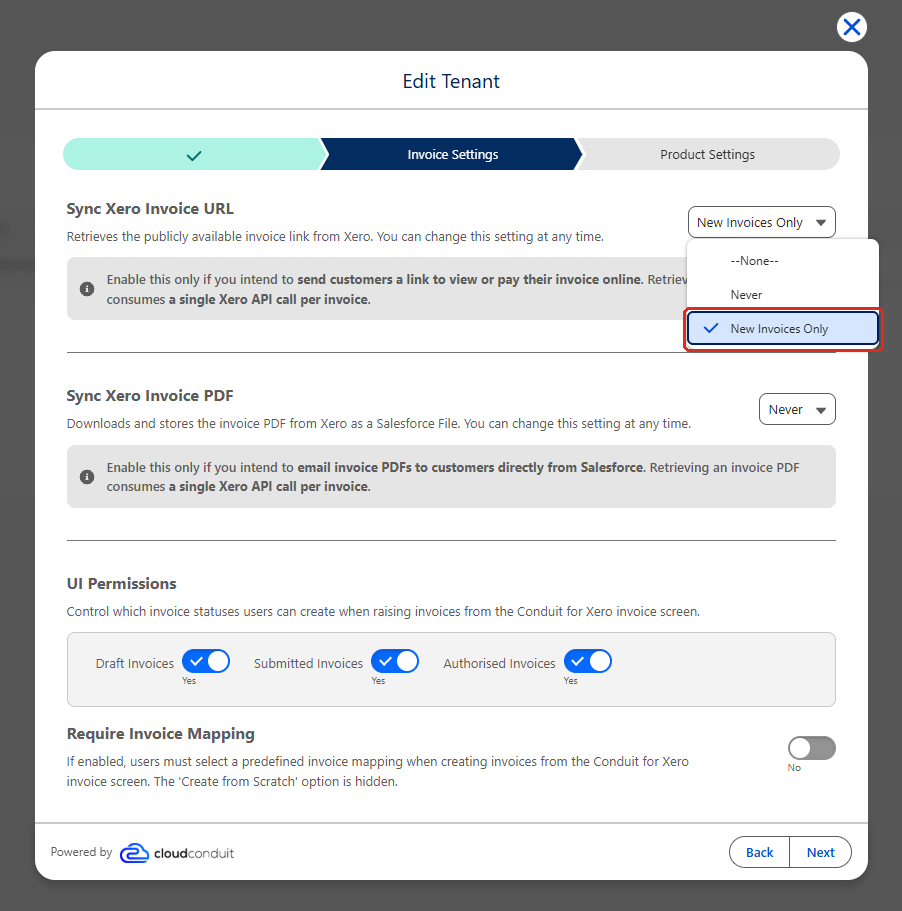
Click Next to go to the Invoice Settings step, then select an option for Sync Xero Invoice URL.
| Option | Description |
|---|---|
| Never | Invoice URLs aren’t retrieved. This is the default. |
| New Invoices Only | Retrieves the URL for invoices created or updated after you turn the setting on. We recommend this option if you send customers invoice links. |
Click Next through the remaining steps, then click Finish to save your changes.
View the Invoice URL
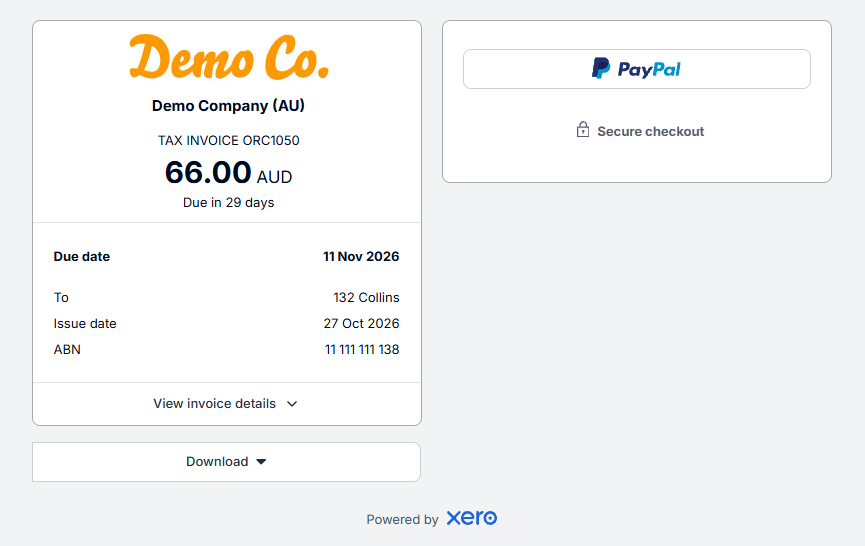
Section titled “View the Invoice URL”Once an invoice has synced, its URL is retrieved in the background. Open the Xero Invoice record and click View Public URL to open the online invoice.

This is the page your customer sees. They can view the invoice details, download it and, if online payments are set up, pay it.
The link is stored in the Invoice URL field in the record’s Information section.
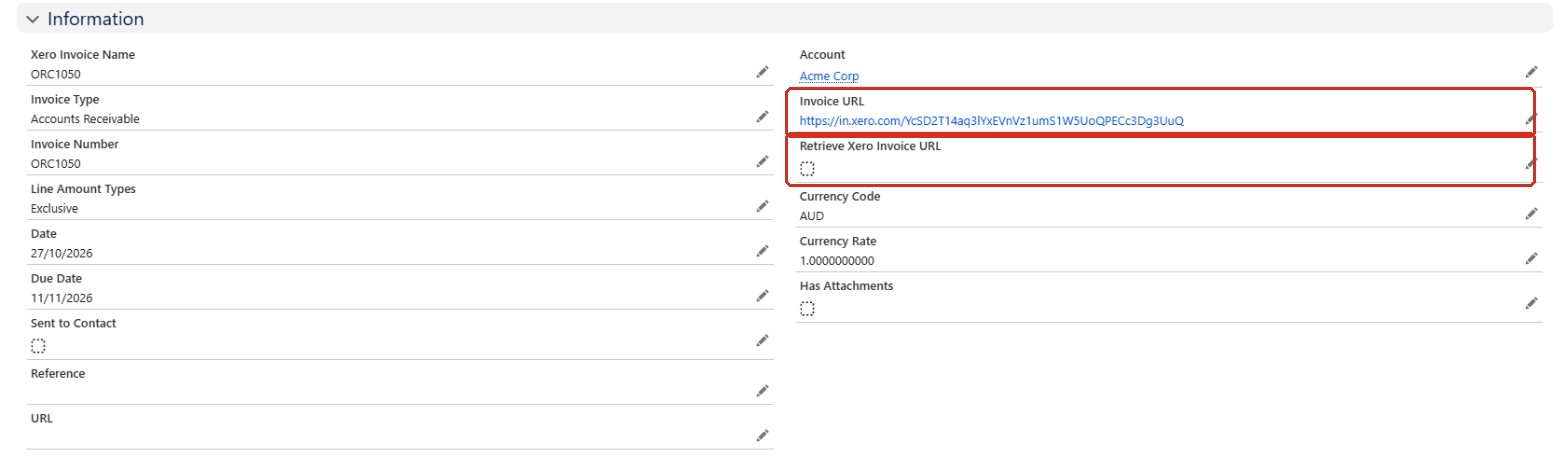
To retrieve the URL again for a single invoice, for example one created before you turned the setting on, select Retrieve Xero Invoice URL on the record and save. The URL is retrieved during the next sync, and the checkbox is cleared automatically.
Send the Invoice URL to Customers
Section titled “Send the Invoice URL to Customers”Because the link is stored in the Invoice URL field, you can include it anywhere Salesforce® can use a field value. For example:
- Email templates — add the Invoice URL merge field to a template, and send it from the record or with an email alert.
- Flows — use the field in a Send Email action, for example when the invoice’s status changes to Authorised.