

Set Up the Flow
Create a record-triggered flow that runs when Send to Xero is ticked, then add the elements that every version of the flow needs: the invoice mapping and the Xero organisation.
Create the Flow
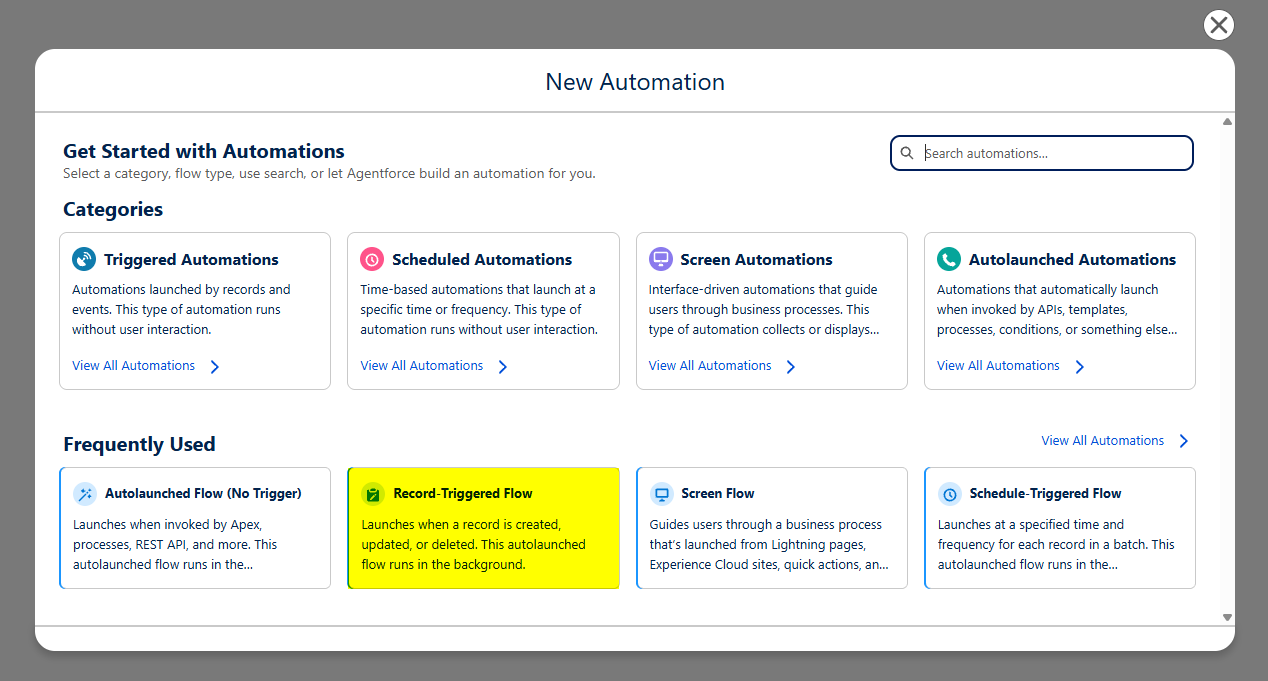
Section titled “Create the Flow”Navigate to Setup > Flows and click New Flow.

Select Record-Triggered Flow.
Configure the Trigger
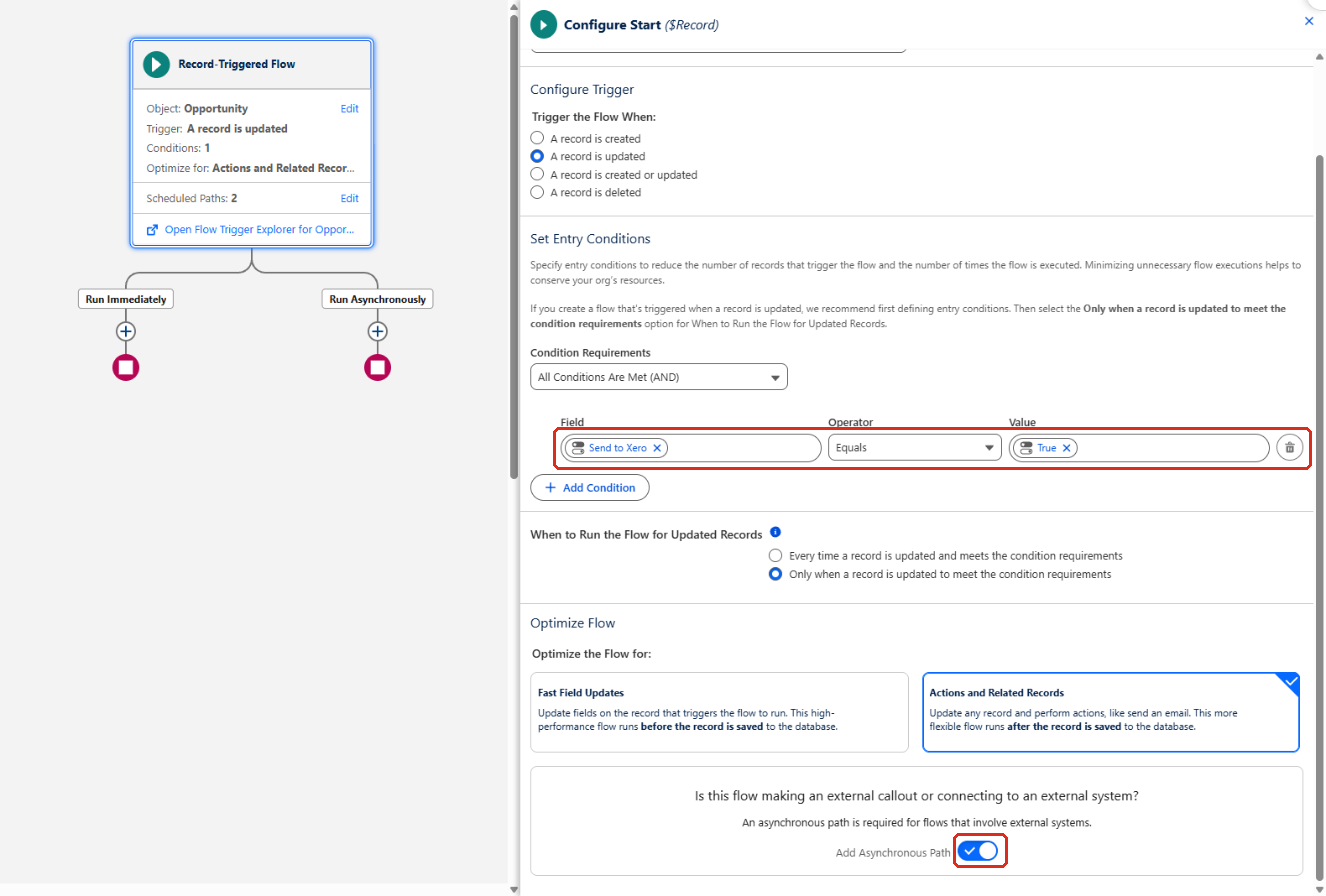
Section titled “Configure the Trigger”In the Configure Start panel, set up the trigger:
- Object —
Opportunity. - Trigger the Flow When — A record is updated.
- Condition Requirements — All Conditions Are Met (AND), with Send to Xero Equals True.
- When to Run the Flow for Updated Records — Only when a record is updated to meet the condition requirements, so the flow runs once when the box is ticked rather than on every later edit.
- Optimize the Flow for — Actions and Related Records.
- Add Asynchronous Path — on.
Get the Invoice Mapping
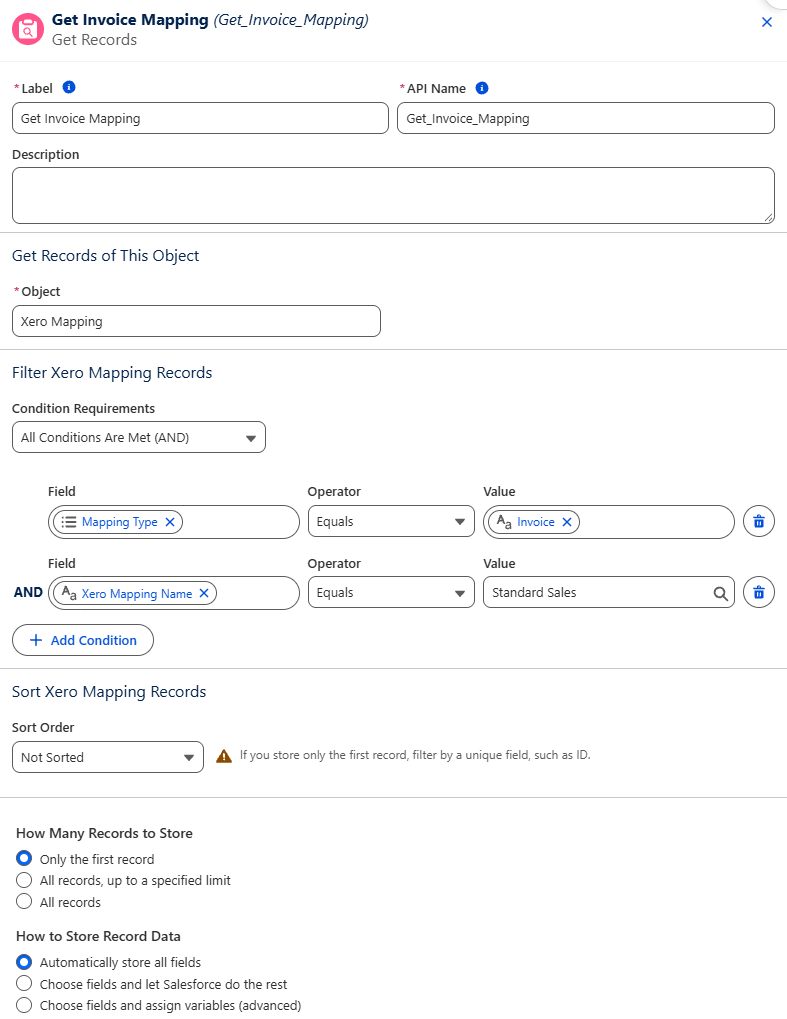
Section titled “Get the Invoice Mapping”On the Run Asynchronously path, click +, select Get Records and set it up to find the invoice mapping:
- Label —
Get Invoice Mapping. - Object —
Xero Mapping. - Filter — Mapping Type Equals
Invoice, and Xero Mapping Name Equals the name of your mapping, for exampleStandard Sales. - How Many Records to Store — Only the first record.
Get the Xero Tenant
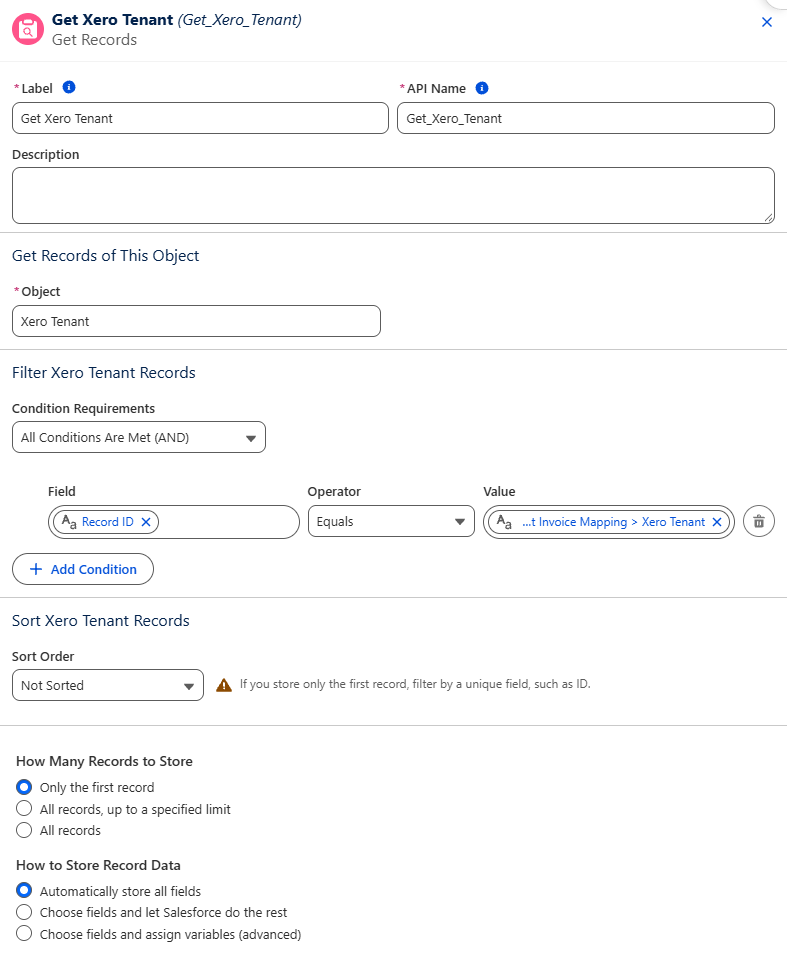
Section titled “Get the Xero Tenant”Below it, add another Get Records element to find the Xero organisation the mapping belongs to:
- Label —
Get Xero Tenant. - Object —
Xero Tenant. - Filter — Record ID Equals Get Invoice Mapping > Xero Tenant.
Click Save and enter a Flow Label, for example Create Xero Invoice from Opportunity.
Choose the Xero Contact
Section titled “Choose the Xero Contact”The rest of the flow depends on how the invoice gets its Xero Contact. Choose one option:
Existing ContactRaise the invoice against the Xero Contact already matched to the record's Account.
New ContactCreate the contact in Xero from the record's Account, then raise the invoice against it.
Combine BothUse the existing contact if there is one, and create a new contact if not.