

Add the Send to Xero Field
The flow runs when the Send to Xero checkbox on the record is ticked, either by a user or by your business process. Create the field, then add it to the record page so you can tick it directly while testing.
Create the Field
Section titled “Create the Field”Navigate to Setup > Object Manager > Opportunity > Fields & Relationships and click New.

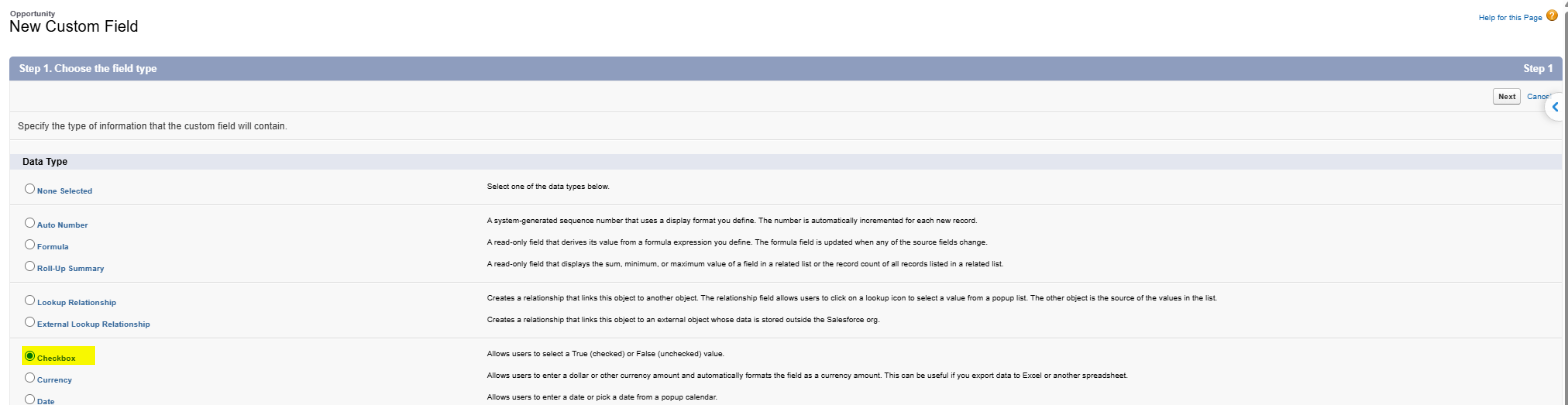
Select Checkbox as the data type and click Next.
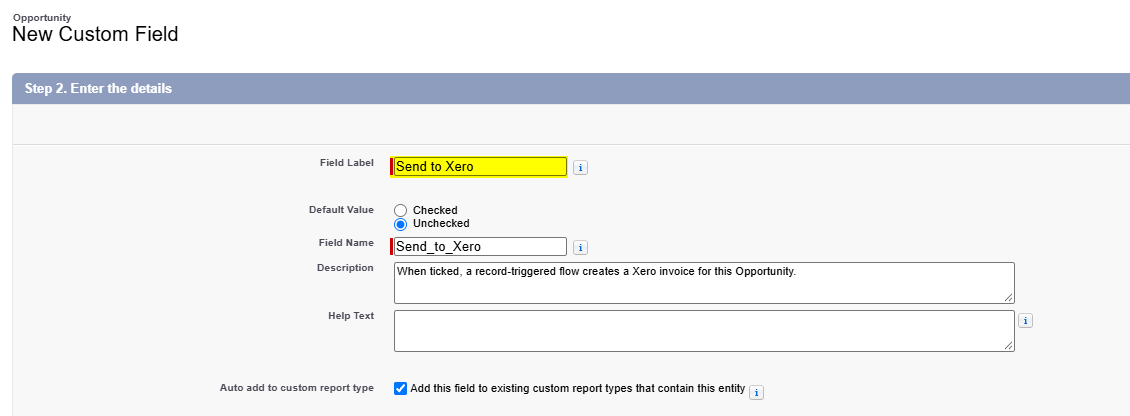
Enter the field details and click Next:
- Field Label —
Send to Xero. The Field Name fills in asSend_to_Xero. - Default Value — leave as Unchecked.
- Description — optional, for example
When ticked, a record-triggered flow creates a Xero invoice for this Opportunity.
On Establish field-level security, make the field visible to the profiles that should be able to send records to Xero, then click Next.
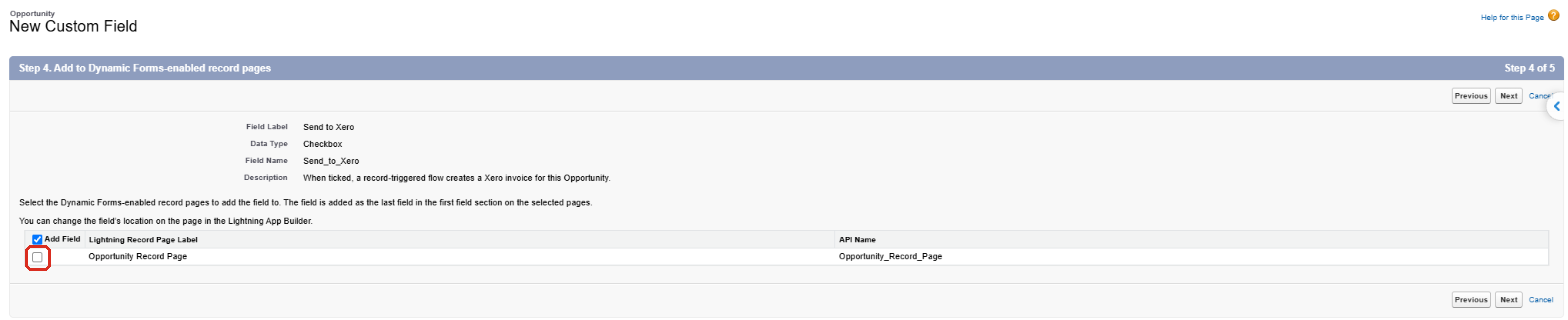
On Add to Dynamic Forms-enabled record pages, clear the Opportunity Record Page. You’ll place the field yourself in the next section. If you leave it selected, the field is added to the end of the page’s first field section instead. Click Next.
On Add to page layouts, leave the layouts selected and click Save.
Add the Field to the Opportunity Page
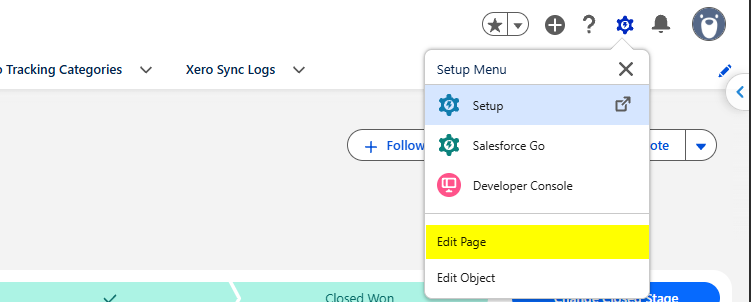
Section titled “Add the Field to the Opportunity Page”Open any Opportunity, click the gear icon and select Edit Page.
In Lightning App Builder, click the Details tab on the canvas to show its field sections. Then open the Fields tab in the left panel and search for Send.
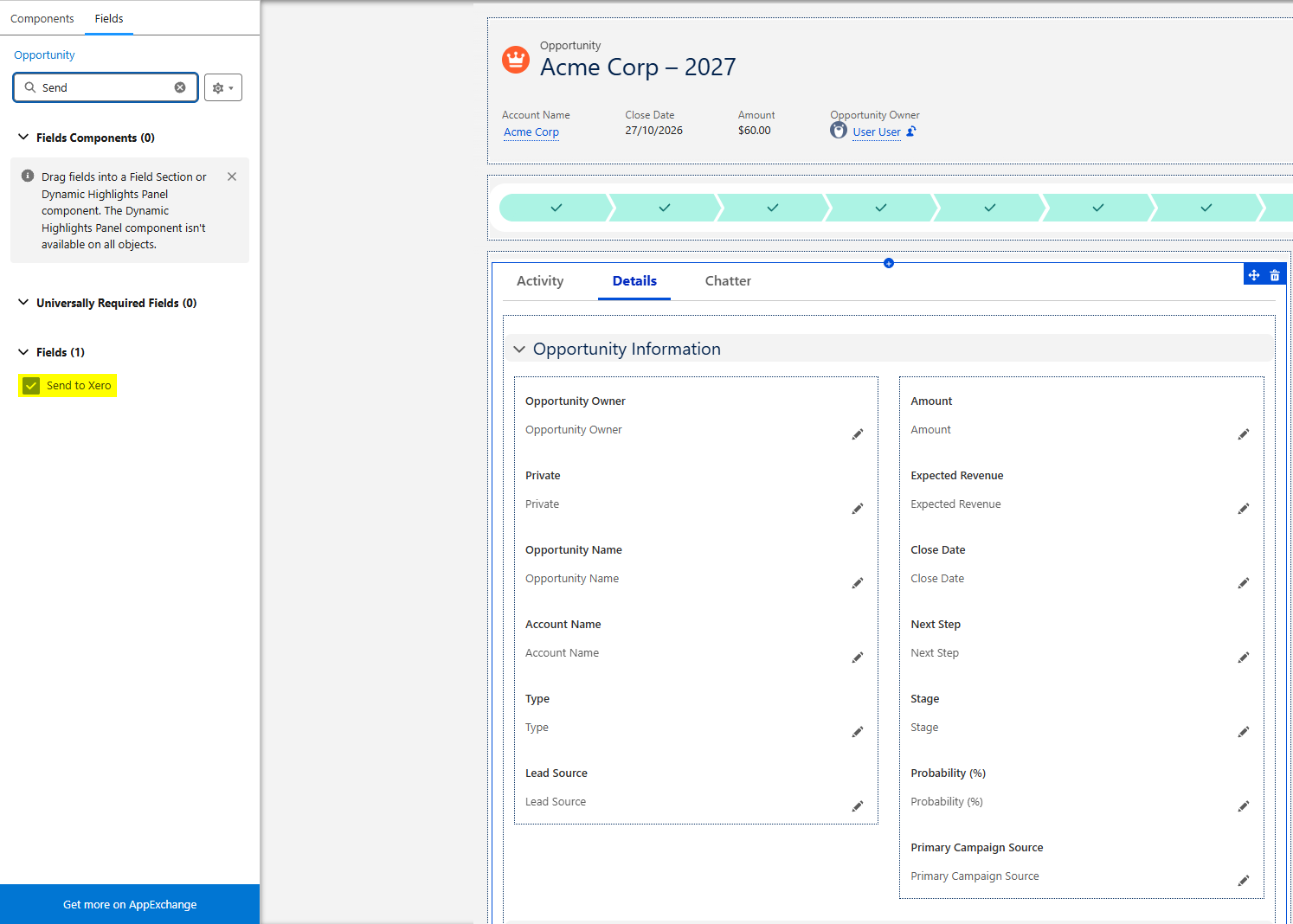
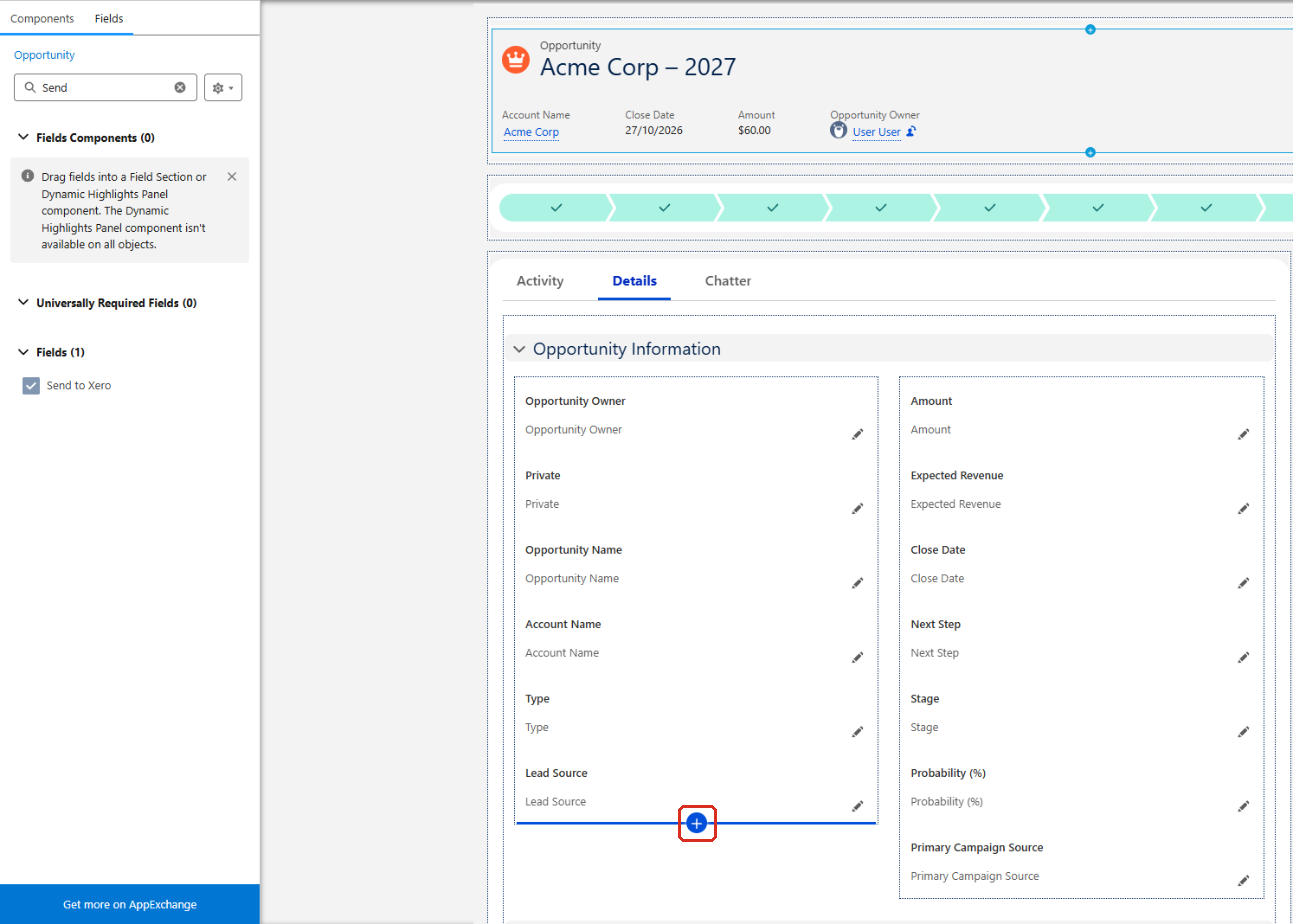
Drag Send to Xero into a field section. Alternatively, click a field on the canvas, click the + insertion point that appears above or below it, and then click Send to Xero in the Fields panel. It’s added at the insertion point.
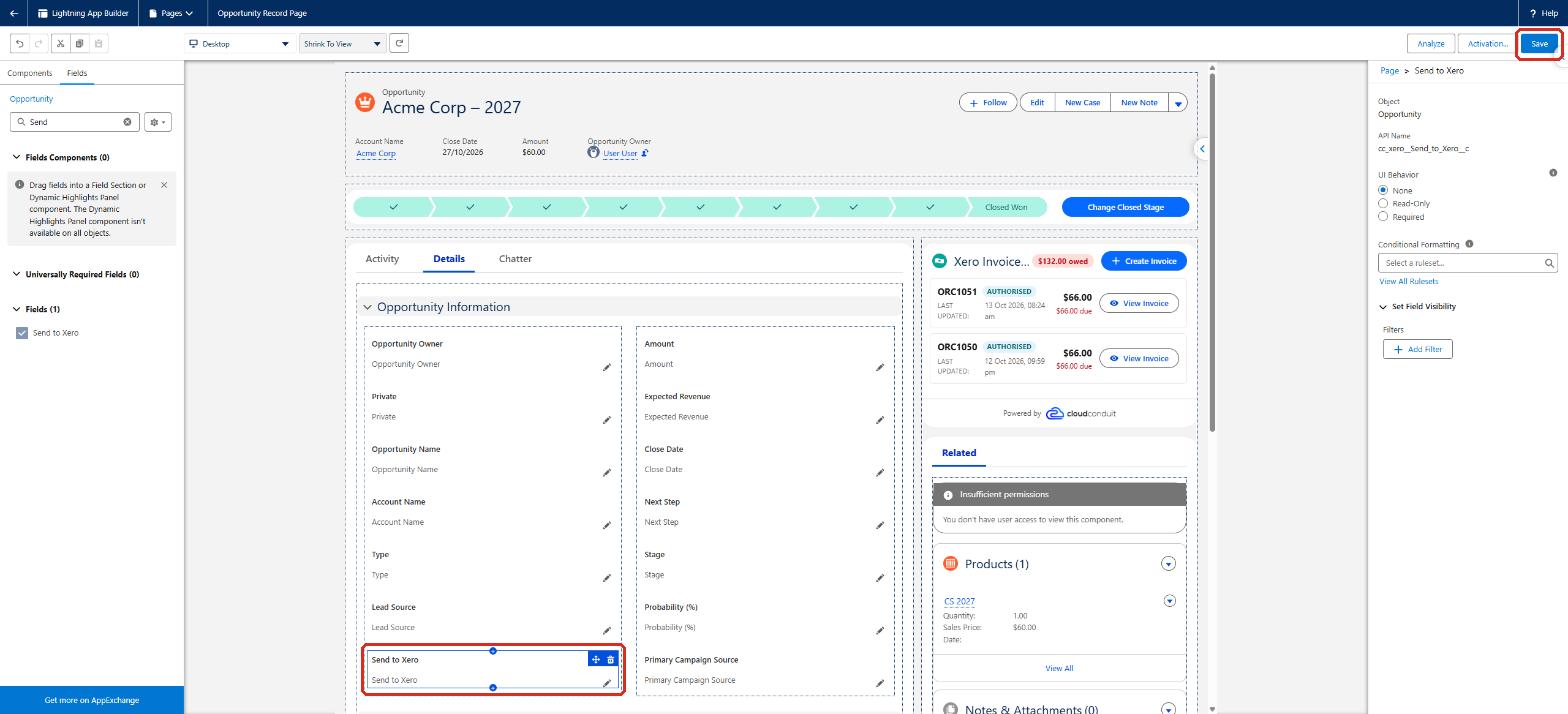
Click Save. If this is the first time you’ve customised the page, click Activation to assign it to your org, app or profiles.
Next, set up the flow.