

Creating Invoice from a Record
Conduit for Xero includes a Xero Invoice Capture component that lets your users create a Xero invoice directly from a Salesforce® record. Added to a record page, it shows a Xero Invoices card listing the invoices linked to the record, with a Create Invoice button that walks users through raising a new one, either from a predefined mapping or from scratch.
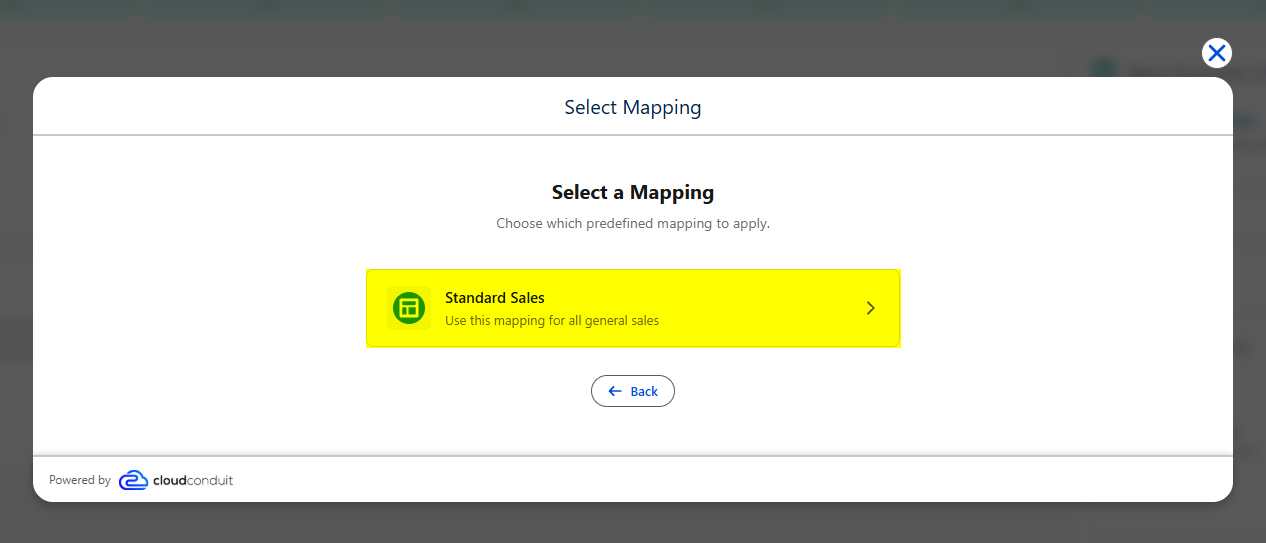
The examples below use the Opportunity object and the Standard Sales mapping, but the same steps apply to any standard or custom object.
Add the Component to the Record Page
Section titled “Add the Component to the Record Page”An administrator adds the component to the object’s Lightning record page once.
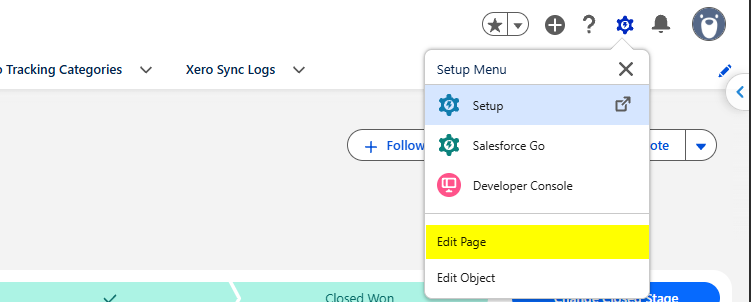
Open a record of the object, click the gear icon and select Edit Page.
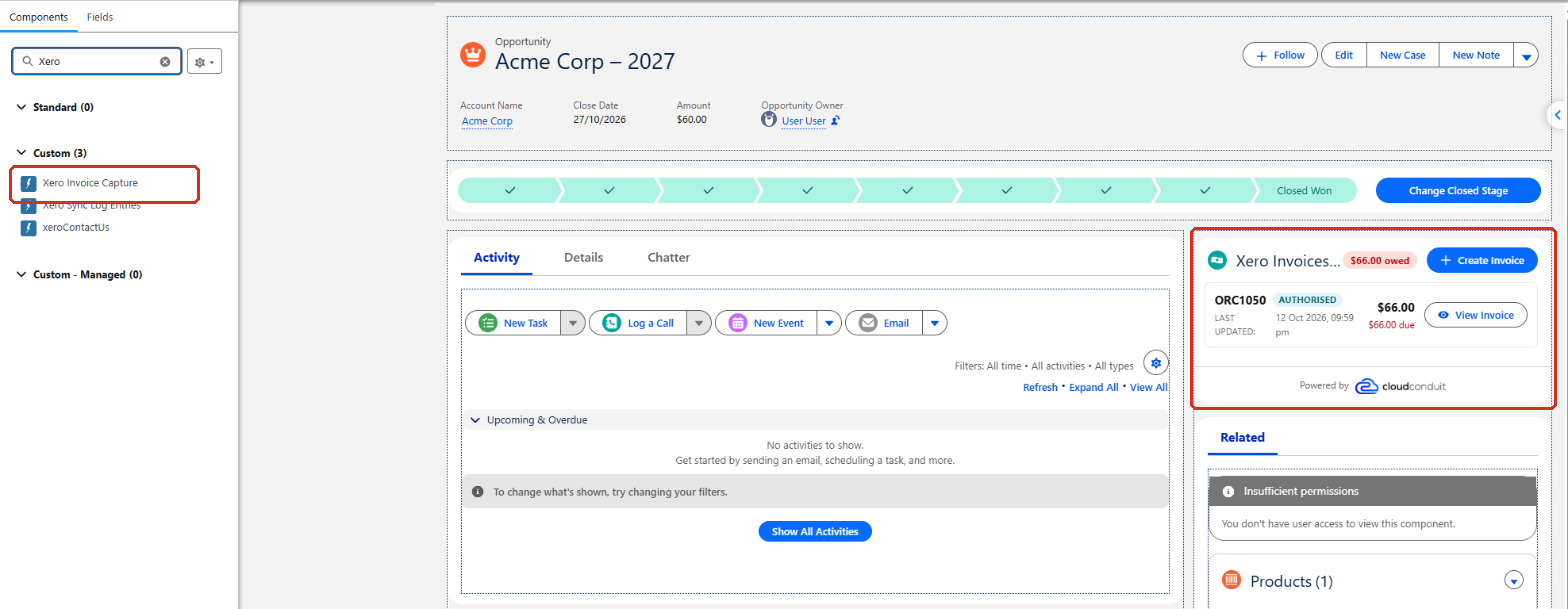
In Lightning App Builder, search the Components list for Xero, then drag Xero Invoice Capture onto the page. We recommend placing it in the side column, near the top.
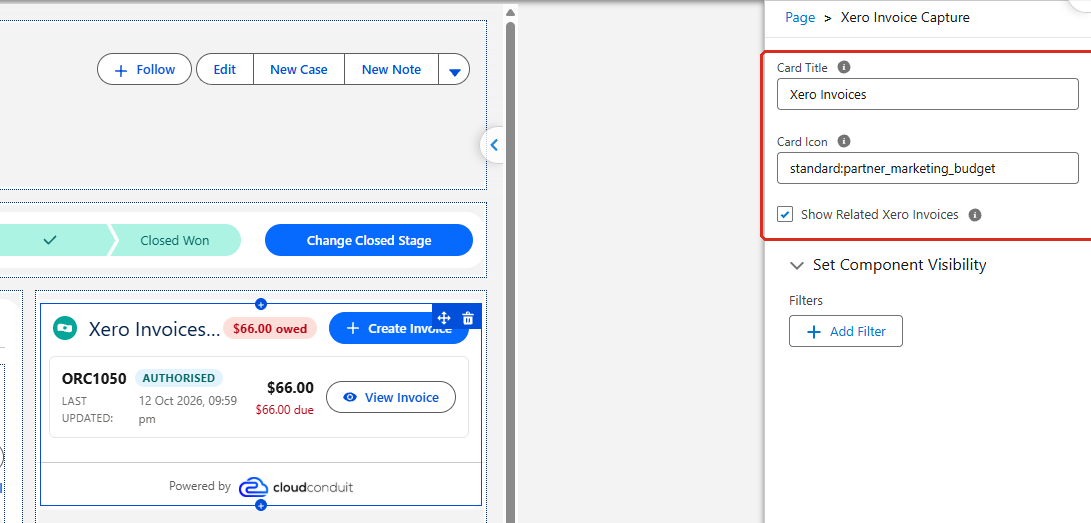
Select the component on the page to set its properties:
| Property | Description |
|---|---|
| Card Title | The heading shown on the card. Defaults to Xero Invoices. |
| Card Icon | The SLDS icon shown next to the title, for example standard:partner_marketing_budget. |
| Show Related Xero Invoices | When selected, the card lists the Xero invoices linked to the record, with their status, total and amount due. Clear it to show only the Create Invoice button. |
Click Save. If this is the first time you’ve customised the page, click Activation to assign it to your org, app or profiles.
Create an Invoice
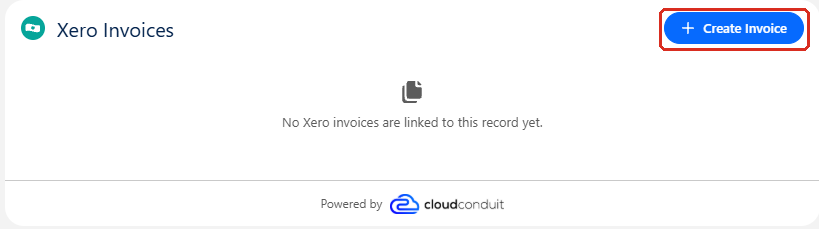
Section titled “Create an Invoice”Navigate to the record you want to invoice, for example the Acme Corp – 2027 Opportunity. The Xero Invoices card shows any invoices already linked to the record.
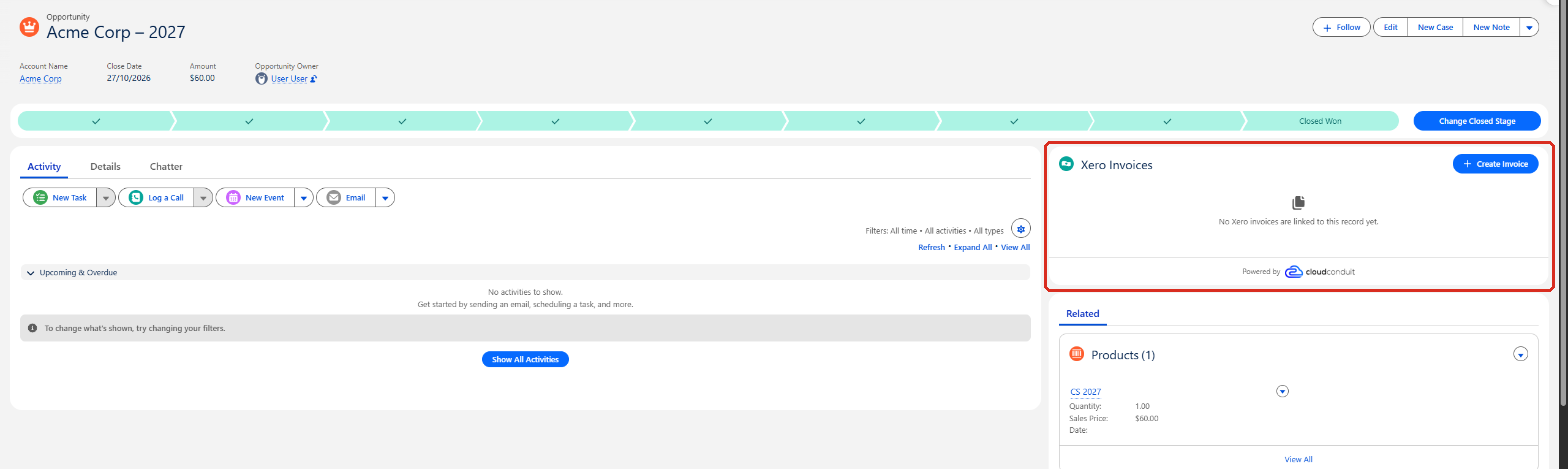
Click Create Invoice.
Choose How to Populate the Invoice
Section titled “Choose How to Populate the Invoice”If you have more than one Xero organisation connected, first select the one to create the invoice in on the Select Xero Organization step. With a single organisation, this step is skipped.
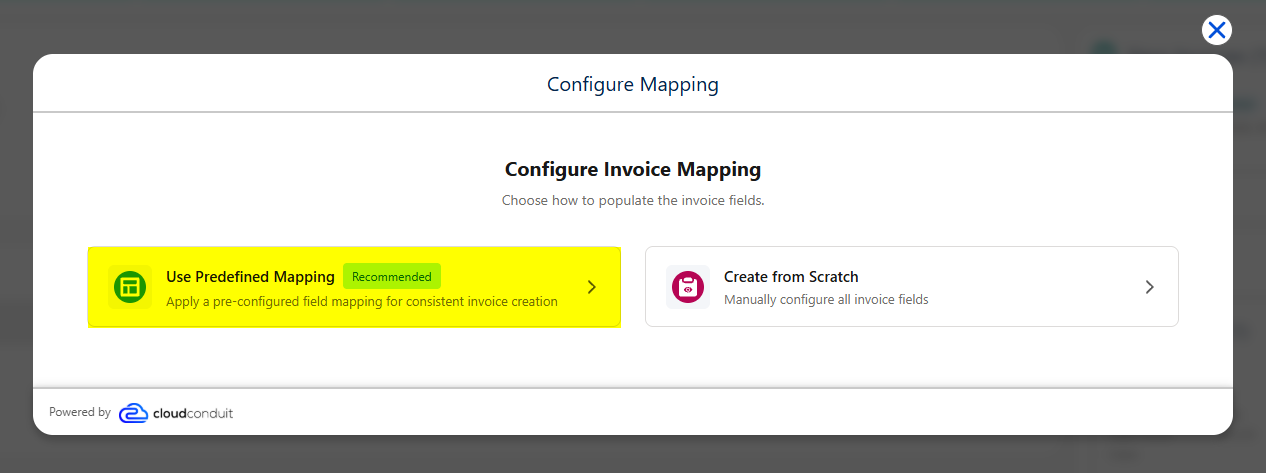
Select how to populate the invoice:
- Use Predefined Mapping (recommended) — fill the invoice from the record using a mapping. See Configure Xero Mappings for how to set these up.
- Create from Scratch — enter all of the invoice details yourself.
Select a Mapping
Section titled “Select a Mapping”Select the mapping to apply. Each mapping shows the description it was given, to help you choose.
Select the Xero Contact
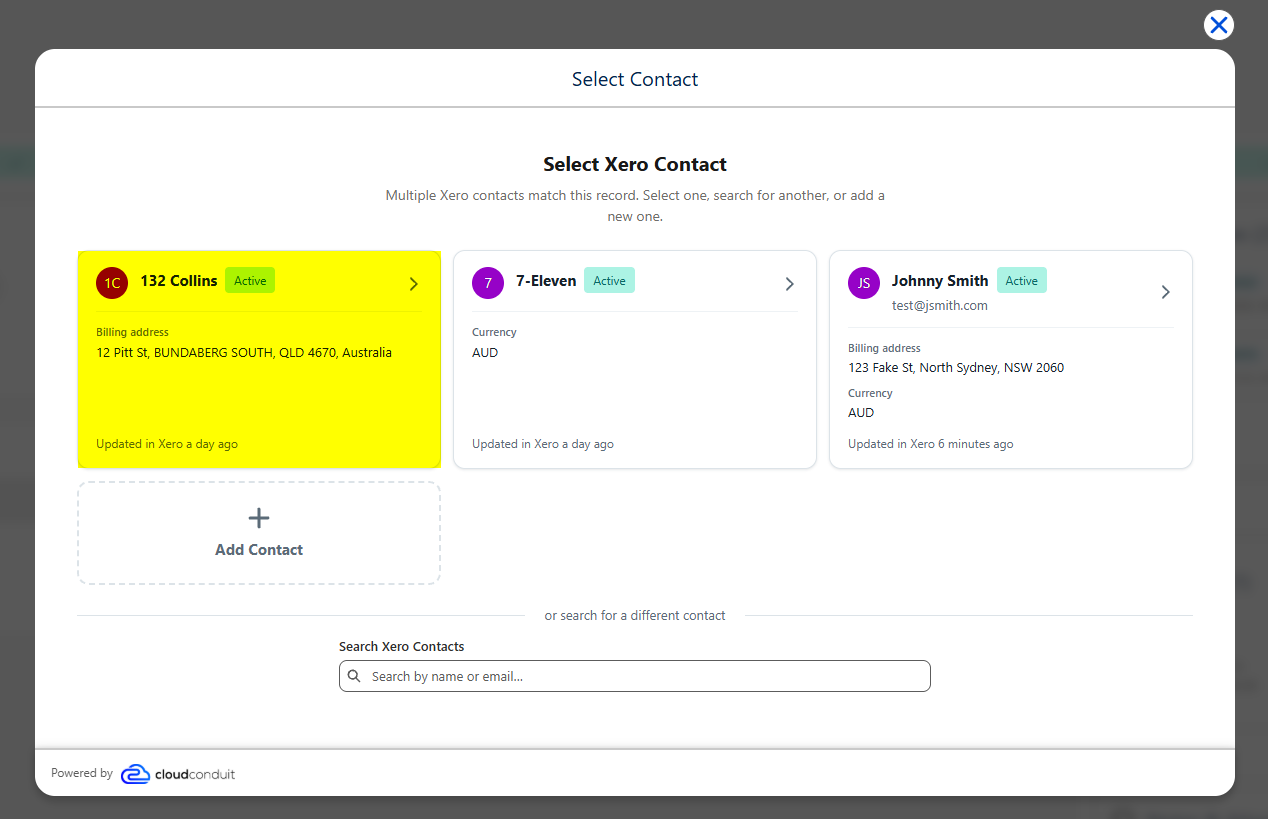
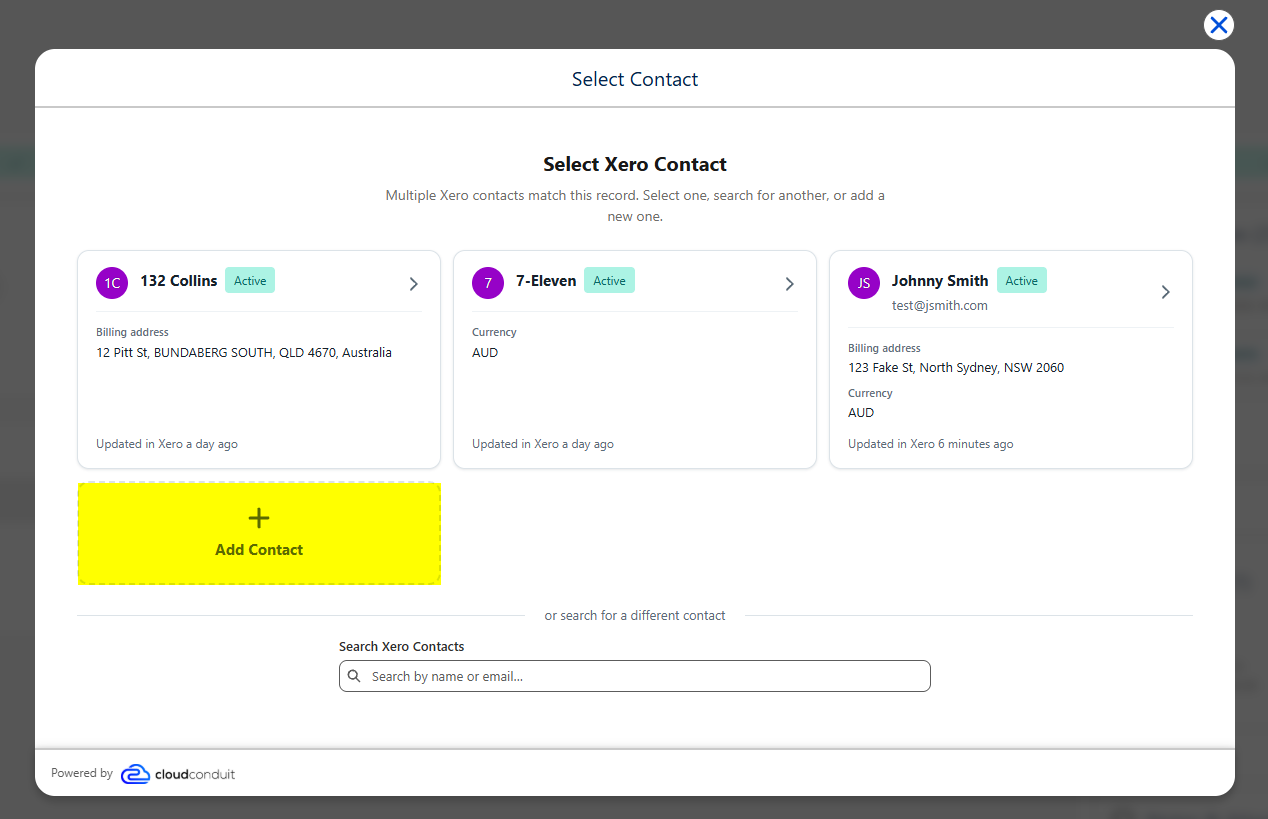
Section titled “Select the Xero Contact”Select the Xero Contact the invoice is raised against. Where more than one Xero Contact matches the record’s Account, each is offered with its address or currency and when it was last updated in Xero. To use a different contact, search by name or email. If the customer isn’t in Xero yet, add them. See Add a New Xero Contact.
Add a New Xero Contact
Section titled “Add a New Xero Contact”Click Add Contact.
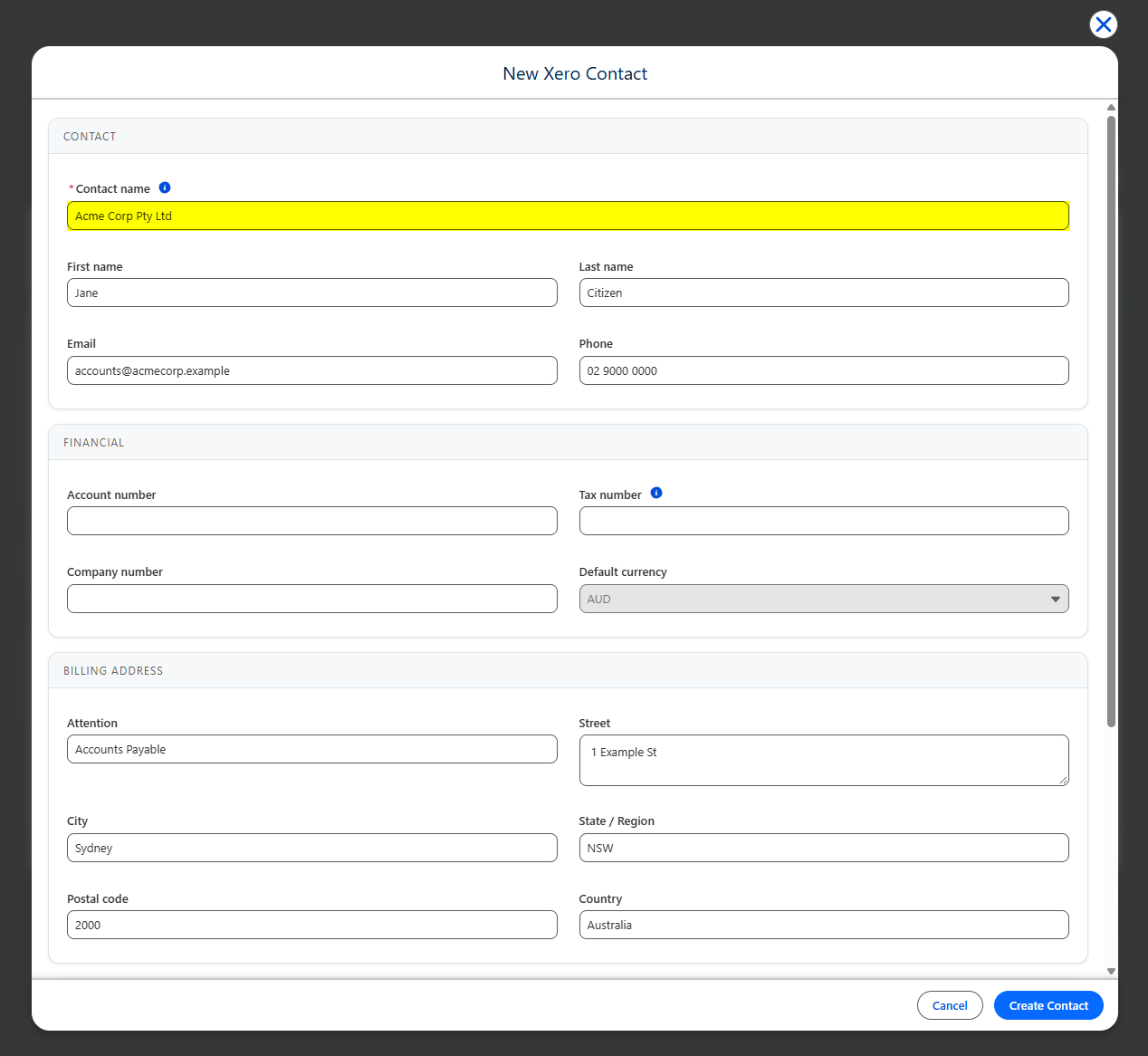
The New Xero Contact form opens. Enter the contact’s details:
- Contact — Contact name is required. It’s the name used on invoices and must be unique in Xero. Optionally add the First name, Last name, Email and Phone of the person you deal with.
- Financial — the Account number, Tax number (ABN, GST or VAT number), Company number and Default currency.
- Billing Address — the Attention, Street, City, State / Region, Postal code and Country for invoices.
Scroll down to Delivery Address. Same as billing address is selected by default; clear it to enter a different delivery address. Then click Create Contact.
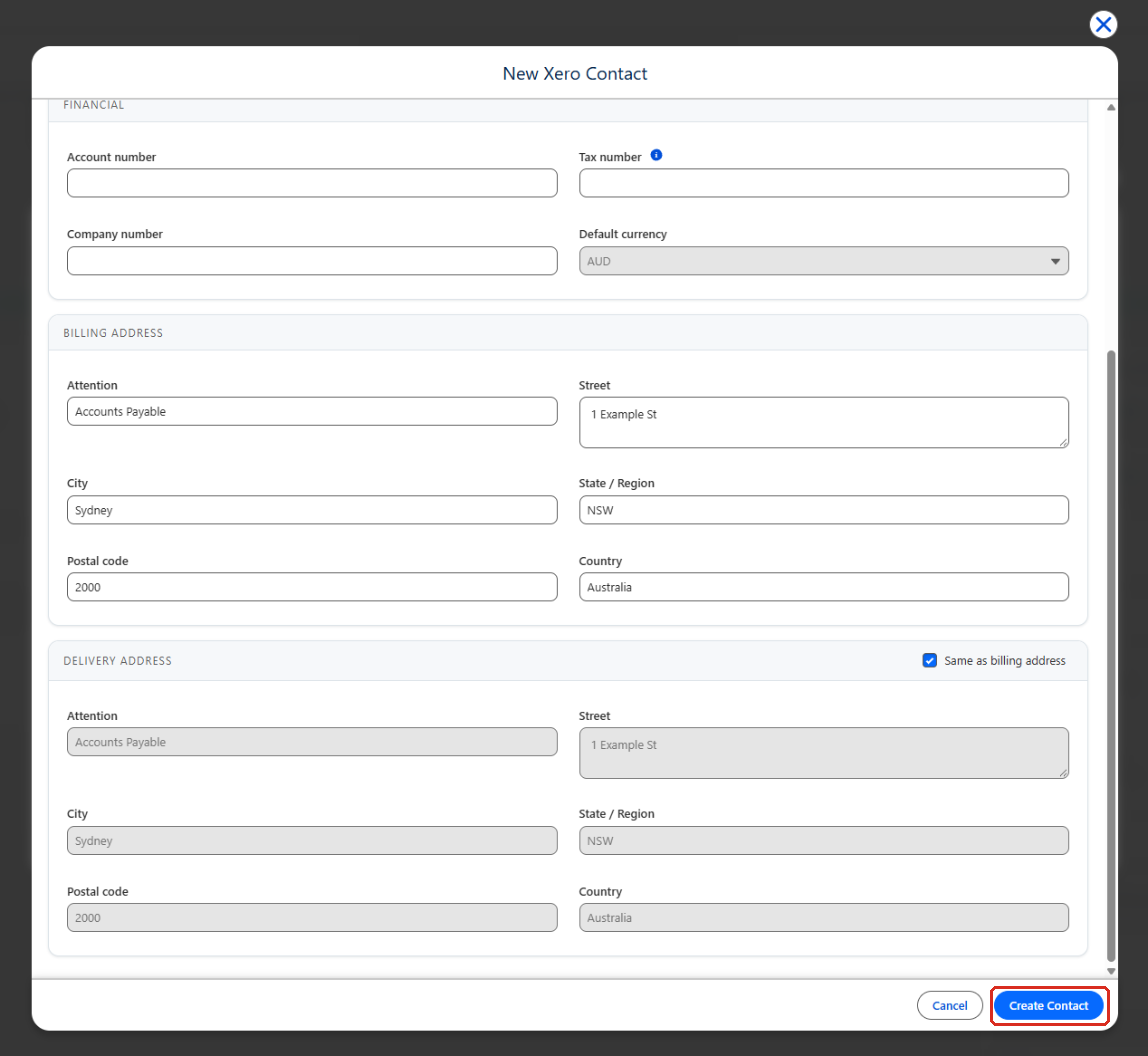
The contact is created in Xero and selected for the invoice, and the wizard moves on to the Create Invoice screen. If the record maps to a Salesforce® Account, the new Xero Contact is also linked to that Account, so it’s offered as a match the next time you invoice the Account.

Review the Invoice
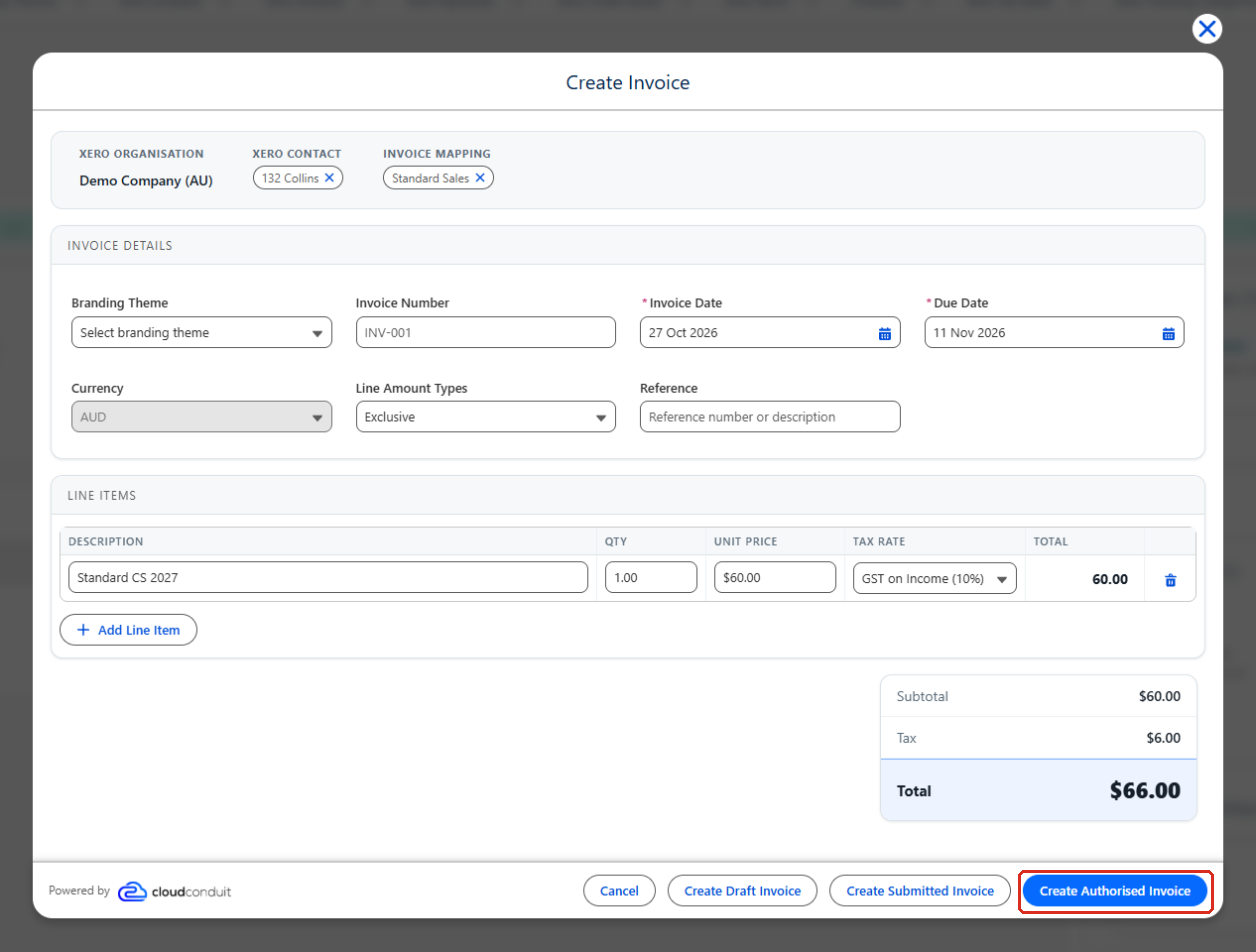
Section titled “Review the Invoice”The Create Invoice screen shows the Xero organisation, contact and mapping at the top. Click the × on the contact or mapping to choose a different one.
If you used a mapping, the Invoice Details and Line Items are filled in from the record. Review them and make any changes:
- Invoice Details — Branding Theme, Invoice Number, Invoice Date, Due Date, Currency, Line Amount Types and Reference. Leave Invoice Number blank to have Xero number the invoice.
- Line Items — the Description, Qty, Unit Price and Tax Rate for each line. Click Add Line Item to add a line, or the delete icon to remove one. The subtotal, tax and total update as you go.
Click the button for the status the invoice should have in Xero: Create Draft Invoice, Create Submitted Invoice or Create Authorised Invoice.
View the Invoice
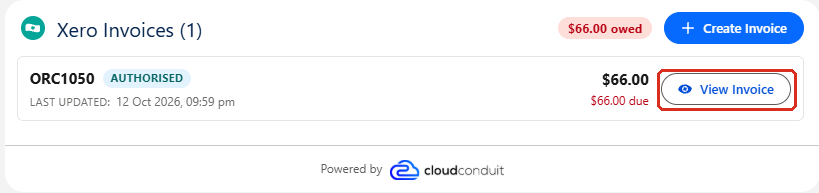
Section titled “View the Invoice”The new invoice appears on the Xero Invoices card with its status, total and amount due. The card header shows the total still owed on the record. Click View Invoice to open the invoice.
The Xero Invoice record shows the invoice synced from Xero, with its lines. Use View in Xero to open it in Xero, or View Public URL to open the online invoice your customer sees.
