

TrueDial Phone Assistant
The TrueDial Phone Assistant is a Lightning component for record pages. It checks every phone field configured for the record’s object and lets users:
- Fix numbers that are invalid
- Format valid numbers that don’t match the configured format
- Call valid numbers with one click
The examples below use the Acme Inc. Account, but the component works the same way on any object with a phone configuration.
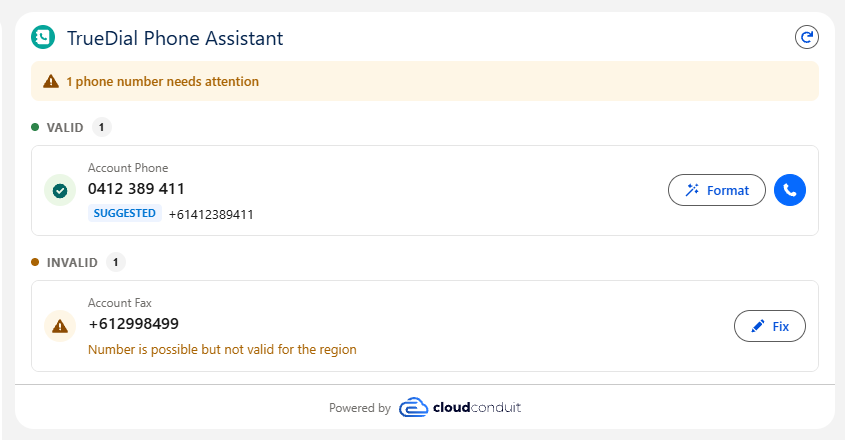
The banner at the top summarises the record, for example 1 phone number needs attention or All 2 phone numbers are valid. Numbers are grouped under Valid and Invalid, and each invalid number shows why it failed validation. Click the refresh icon in the top-right corner to check the numbers again.
Add the Component to a Record Page
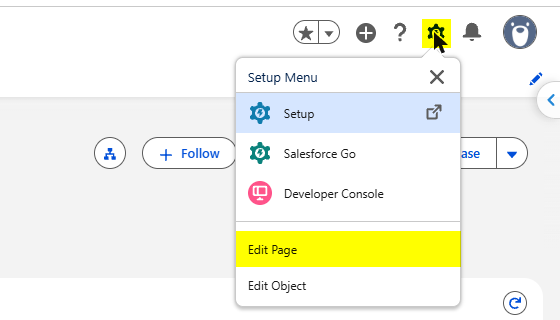
Section titled “Add the Component to a Record Page”Open a record of the object you want to configure, click the gear icon and select Edit Page.
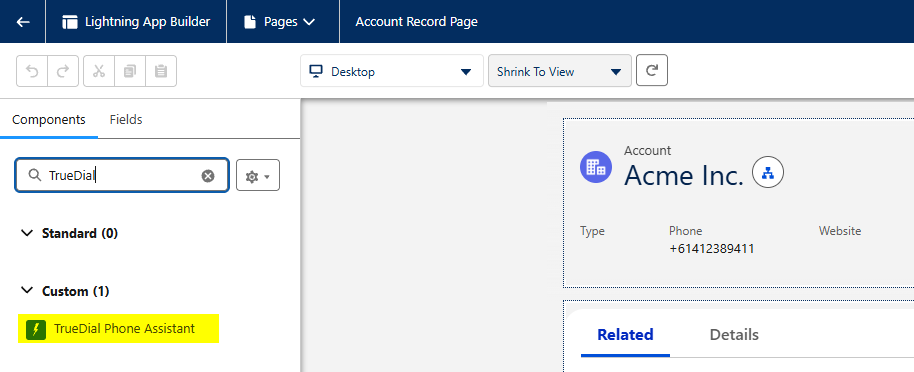
In the Components panel, search for TrueDial, then drag TrueDial Phone Assistant onto the page.
Select the component on the page to show its properties.
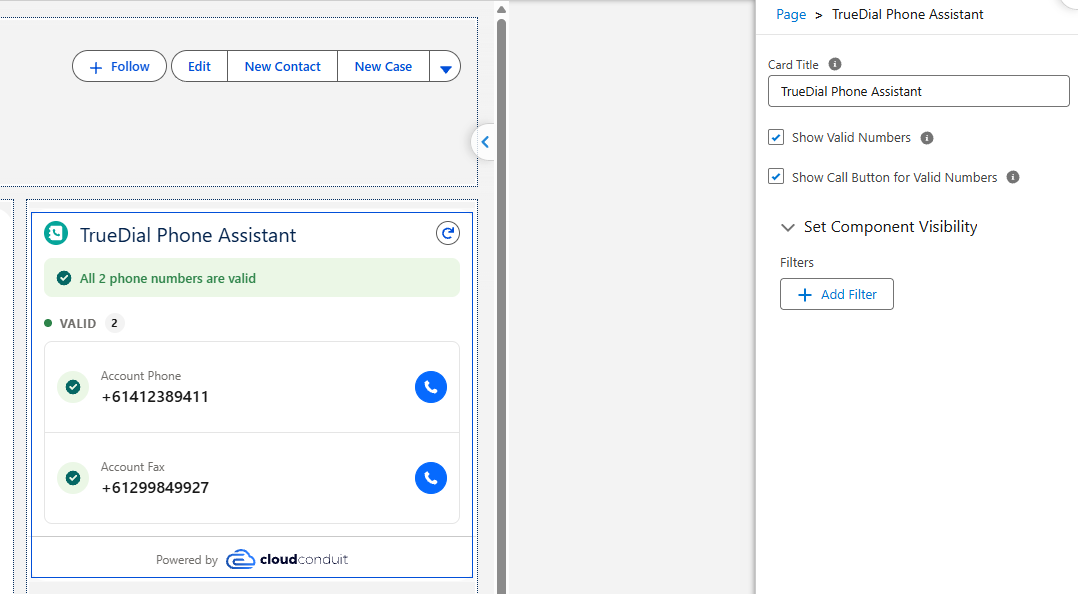
| Setting | Description |
|---|---|
| Card Title | The title shown at the top of the component. Defaults to TrueDial Phone Assistant. To use a custom label, enter an expression in the format {!$Label.customLabelName}. |
| Show Valid Numbers | Shows the Valid section. Keep this enabled if users call numbers from the component. Disable it to show only the numbers that need fixing. |
| Show Call Button for Valid Numbers | Shows a call button next to each valid number, which dials the number using the calling app or telephony integration set up in the user's browser. |
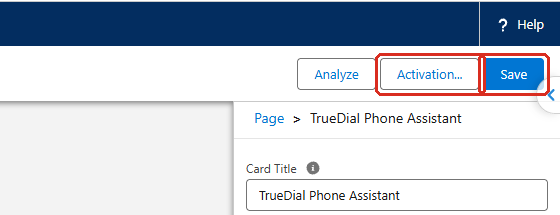
Click Save. If the page isn’t active yet, click Activation… and assign it to the apps, record types or profiles that should see it.
Fix an Invalid Number
Section titled “Fix an Invalid Number”Numbers that fail validation are listed under Invalid, with the reason underneath. Click Fix next to the number.

Enter the correct number in Corrected phone number. TrueDial checks the number as you type: a valid number shows Valid! with the number in its configured format, and an invalid number shows the reason in red. The Save button only appears once the number is valid.
Click Save, or click Cancel to close the editor without changing the number.
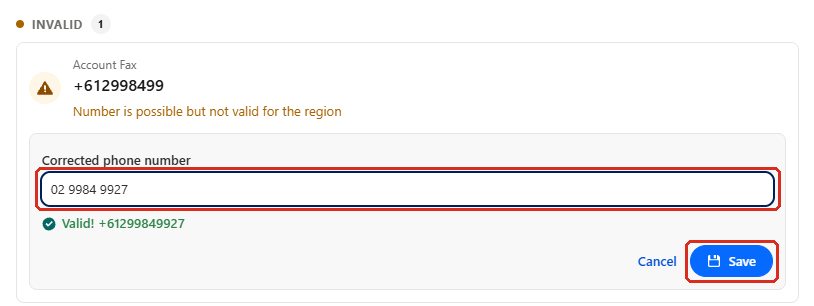
The number moves to the Valid section. If formatting is enabled for the field, it’s saved in the configured format, for example +61299849927 for E.164.
Format a Valid Number
Section titled “Format a Valid Number”If a valid number doesn’t match the format configured for its field, the component shows the Suggested format underneath it, along with a Format button. Click Format.
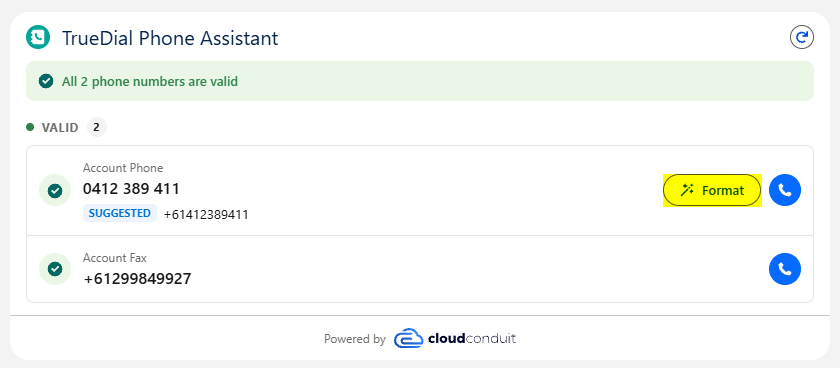
The number is updated to the suggested format and saved straight away.
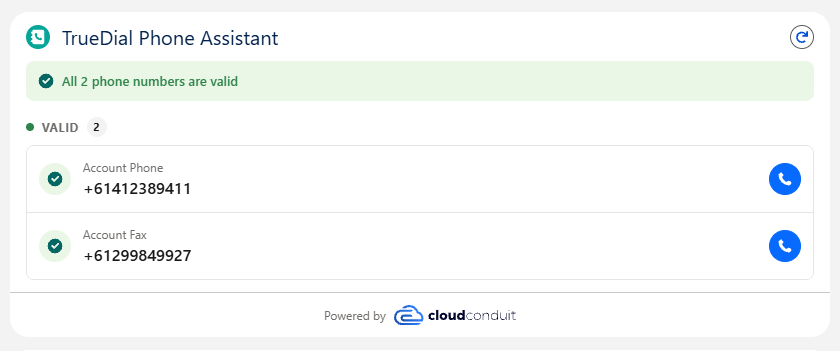
Formats are set per field in Phone Configurations.
Call a Number
Section titled “Call a Number”If Show Call Button for Valid Numbers is enabled, click the phone icon next to a valid number to call it. Invalid numbers don’t have a call button until they’re fixed.